Actions
Actions are the tasks that your workflow performs after its triggered. They are the building blocks that define what your workflow actually does, from updating records to sending notifications and beyond. This guide covers the types of actions available in Wakflo and how to configure them effectively.
Action Types
Wakflo provides a wide range of actions to help you automate a variety of operations in your business:
App Actions
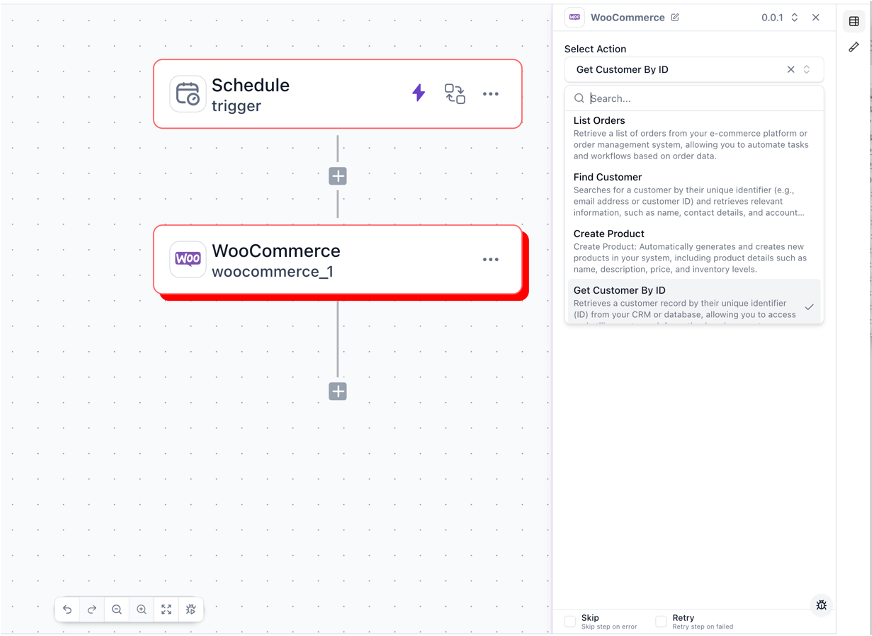
App actions perform operations on your connected ecommerce platforms and services. These actions interact directly with your business systems.
Examples include:
- Update product details
- Change order status
- Update inventory levels
- Create customer records
- Apply discounts or promotions
Communication Actions
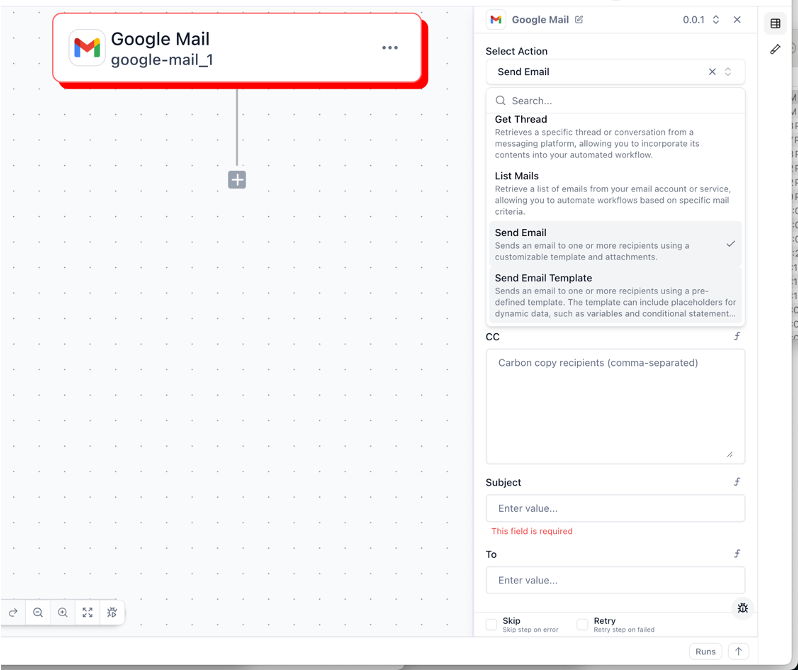
Communication actions send messages and notifications through various channels.
Options include:
- Send email
- Send SMS messages
- Send Slack message
- Create support tickets
- Generate customer communications
Data Manipulation Actions
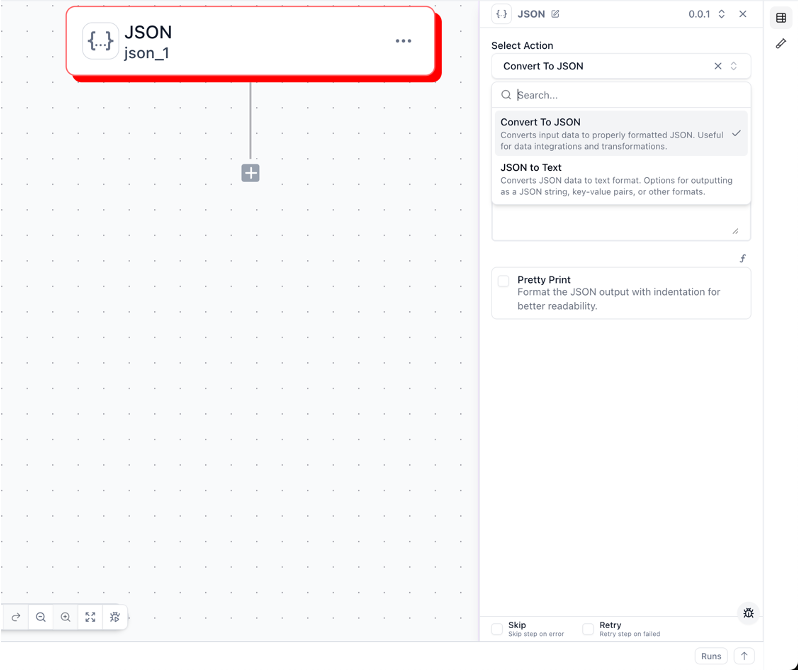
Data manipulation actions transform, combine, or process data within your workflow.
Common operations:
- Transform data formats
- Text to JSON conversion
- JSON to text conversion
- Merge data from multiple sources
Logical Actions
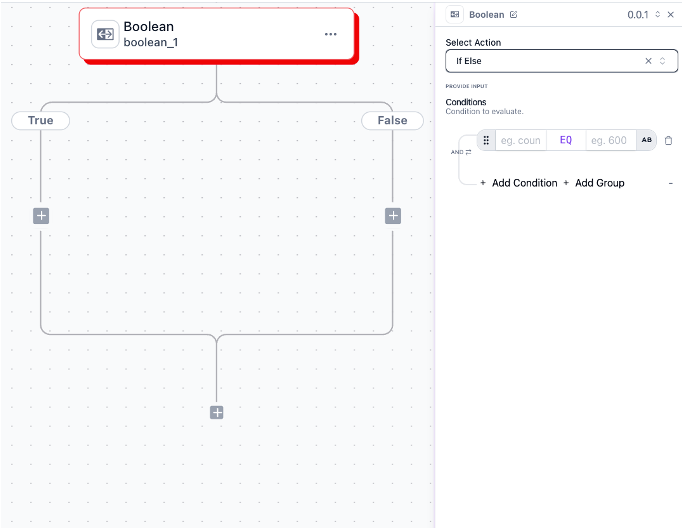
Logical actions control the flow of your workflow based on conditions and data states.
Types include:
- Boolean (if/else)
- Loops (for each item in a collection)
- Branch (multiple paths)
Configuring Actions
Basic Action Configuration
To add and configure an action in your workflow:
Add action
Click the ”+” button after your trigger or previous action
Select action type
Choose from the categories and find your desired action
Configure settings
Fill in the required fields and options for the action
Map data
Connect data from previous steps using the data mapper
Set error handling
Configure what happens if the action fails
Data Mapping
Data mapping is how you use data from previous steps in your current action. This is one of the most powerful features of Wakflo.
To map data:
- Click the “f” button at the top right of an input field
- Browse available data from previous steps
- Select the data you want to use
- Apply transformations if needed
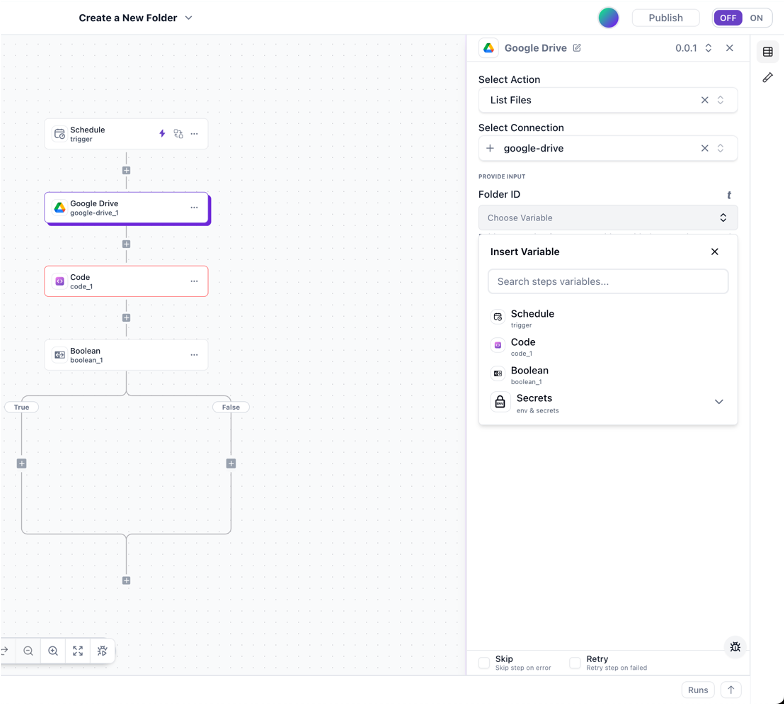
You can combine static text with mapped data. For example, in an email subject field, you could enter: “Your order #[order_number] has shipped”
Dynamic Values
For more advanced data mapping, Wakflo provides several options:
Formula Editor
Create mathematical formulas and calculations to generate dynamic values
Text Formatter
Format text with concatenation, case changes, and other string operations
Condition Builder
Create logical expressions that evaluate to true/false or custom values
JSON Parser
Extract specific values from complex JSON objects and arrays
Common Action Patterns
Sequential Actions
The simplest action pattern is a sequence of actions that execute one after another:
Conditional Branches
Use conditions to create different paths in your workflow:
Loops
Process multiple items with loops:
Action Best Practices
Performance Optimization
- Batch operations: Use bulk actions when processing multiple items
- Minimize API calls: Combine related operations to reduce API requests
- Use caching: Cache data that might be reused across multiple steps
- Optimize file handling: Process large files in chunks or streams
Error Handling
- Validate input data: Check that required data exists before using it
- Handle edge cases: Account for empty arrays, null values, etc.
- Implement retries: Configure retry or skip logic on each step for transient failures
- Add error notifications: Alert relevant team members when critical actions fail
Maintainability
- Name actions clearly: Use descriptive names for each action
- Use consistent patterns: Follow the same patterns across similar workflows
- Break down complex workflows: Split large workflows into smaller, manageable parts
Testing Actions
Before activating your workflow, you should thoroughly test your actions:
Test individual actions
Use the action test button to verify each action works correctly in isolation
Test the entire workflow
Run a complete workflow test to ensure actions work together properly
Test with different data scenarios
Verify your workflow handles various data inputs correctly
Test error handling
Deliberately cause errors to verify your error handling works as expected
Common Action Examples
Order Processing Actions
1. Get Order Details → Retrieve full order information
2. Check Inventory → Verify items are in stock
3. Reserve Inventory → Hold inventory for the order
4. Generate Shipping Label → Create shipping documentation
5. Send Order Confirmation → Notify customer about order status
Customer Communication Actions
1. Filter Customers → Select customers meeting specific criteria
2. Personalize Message → Customize content for each recipient
3. Send Email → Deliver personalized communication
4. Log Communication → Record message in customer history
5. Schedule Follow-up → Set reminder for future contact
Inventory Management Actions
1. Check Stock Levels → Get current inventory counts
2. Apply Business Rules → Determine reorder needs based on rules
3. Generate Purchase Orders → Create POs for low stock items
4. Send to Suppliers → Transmit POs to appropriate vendors
5. Update Inventory System → Record pending inventory
Troubleshooting Actions
Action Failures
- Check that required input data is available and correctly formatted
- Verify integration connections are active and authenticated
- Check for rate limiting or API throttling
- Look for changes in external API requirements
Performance Issues
- Look for actions processing large data volumes
- Check for inefficient loops or nested operations
- Monitor API response times from integrated platforms
- Identify and optimize slow-running actions
Data Mapping Problems
- Verify data paths are correct
- Check for null or undefined values
- Ensure data types match expected formats
- Add data transformations where needed
Next Steps
Now that you understand how to use actions in your workflows, explore these related topics: