Google Sheets Integration
The Google Sheets integration connects your Google Sheets account to Wakflo, enabling you to automate spreadsheet operations, data management, and reporting workflows.
Authentication Method: OAuth 2.0
Account Requirements:
- Active Google account
- Google Workspace or personal Google account
- Appropriate spreadsheet permissions
- API access enabled
Google Sheets Actions
Spreadsheet Actions
- Create Spreadsheet: Create a new Google Sheets spreadsheet
- Find Worksheet: Search for a worksheet within a spreadsheet
- Get Worksheet by ID: Retrieve a specific worksheet using its ID
- Copy Worksheet: Duplicate an existing worksheet
Data Actions
- Add Row in Worksheet: Insert a new row with data
- Update Row in Worksheet: Modify existing row data
- Read Row in Worksheet: Retrieve data from a specific row
- Add Column in Worksheet: Insert a new column with headers and data
Google Sheets Setup Guide
Connect to Google Sheets
From the Integrations page, select Google Sheets and click “Connect”
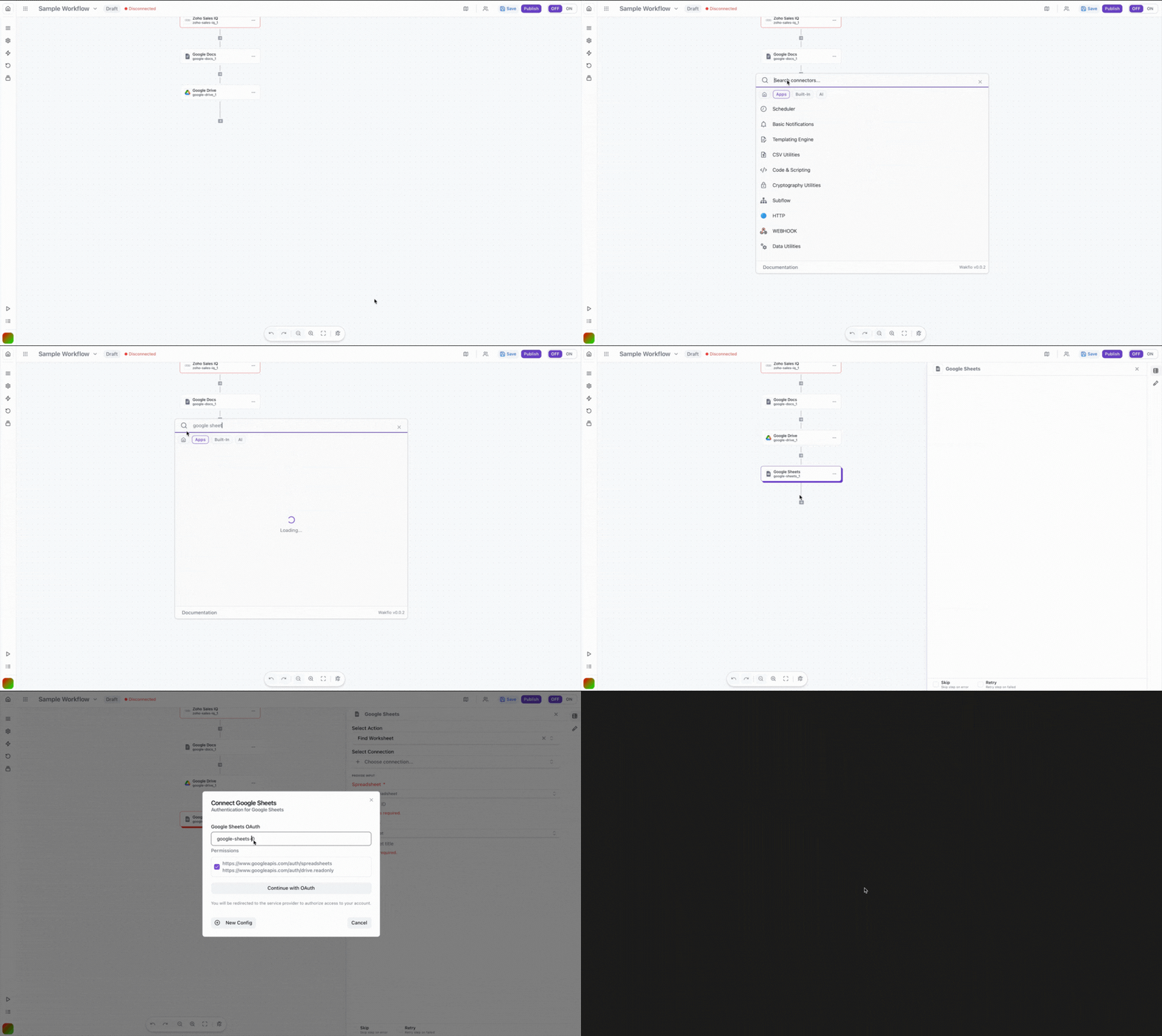
Sign in to Google
Log in to your Google account when prompted
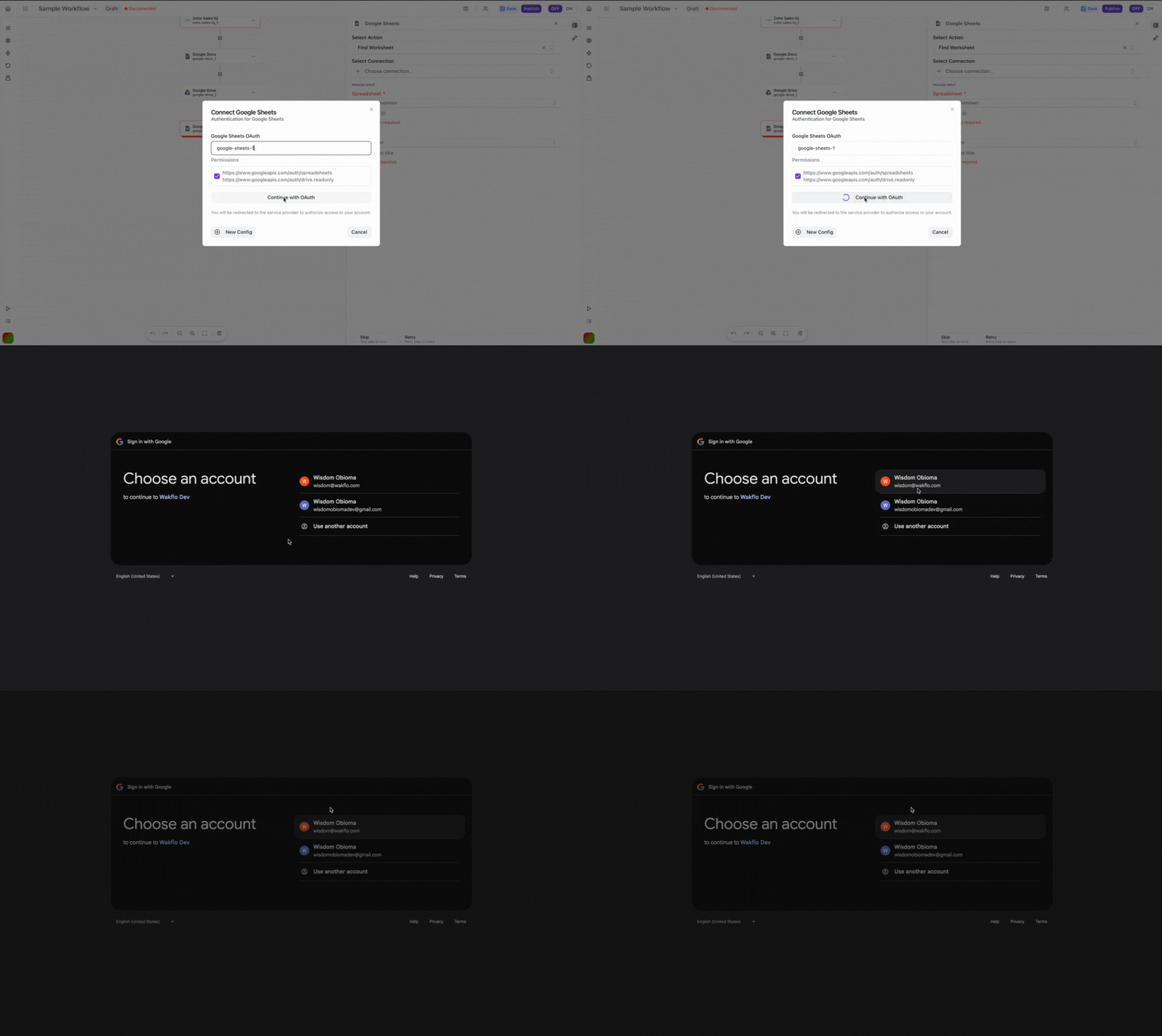
Approve Permissions
Review and grant the requested permissions for Wakflo to access your spreadsheets
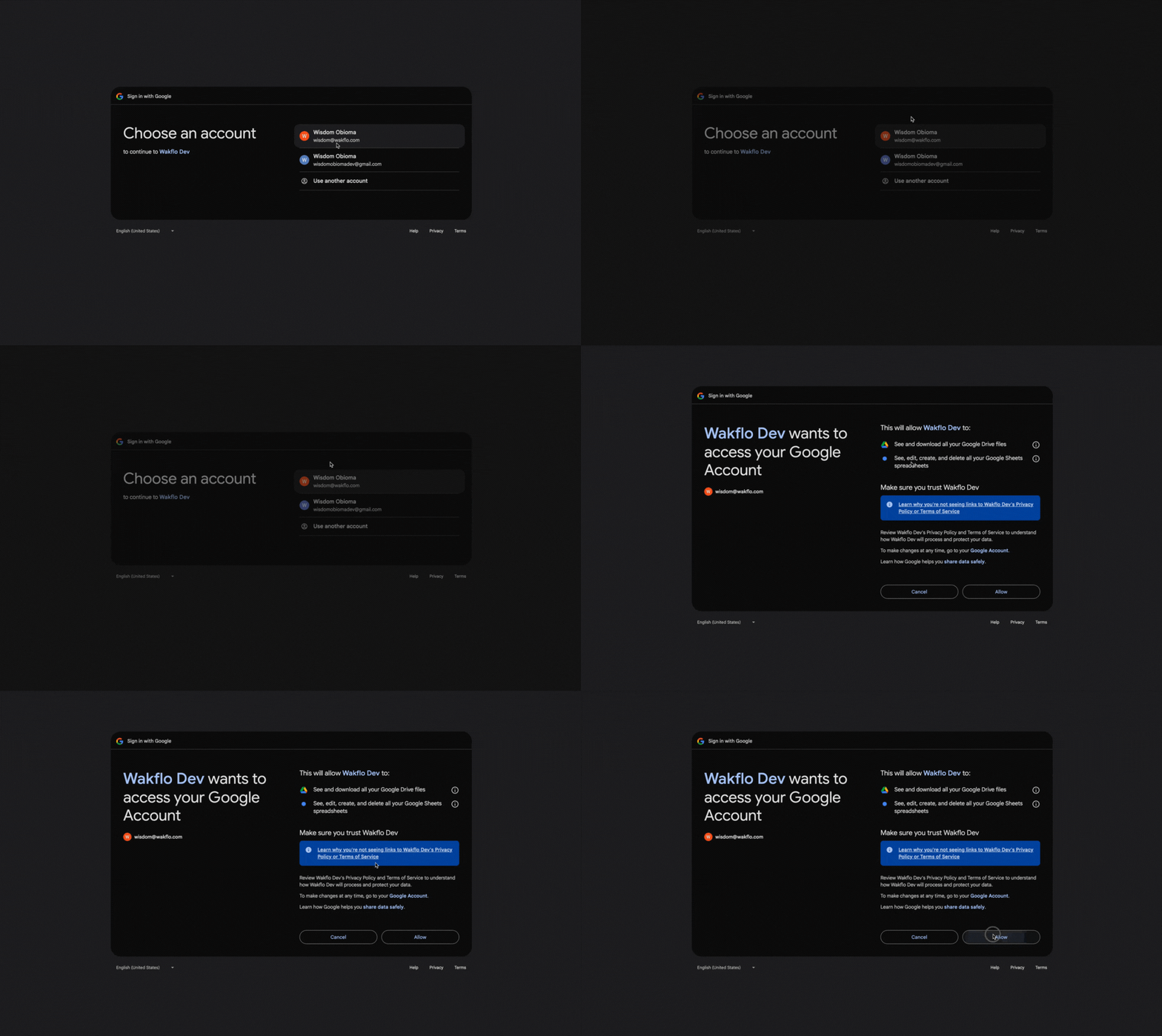
Complete Setup
Finish the connection process and start building spreadsheet automation workflows

Tip: Google Sheets uses a cell reference system (A1, B2, etc.). Understanding this notation will help you work more effectively with the integration.
Action Details
Create Spreadsheet
Creates a new Google Sheets spreadsheet in your Drive.
Parameters:
title(required): Name of the new spreadsheetfolderId(optional): Google Drive folder ID for placementinitialData(optional): Array of arrays for initial sheet data
Returns:
- Spreadsheet ID
- Spreadsheet URL
- Default worksheet ID
Find Worksheet
Searches for a worksheet by name within a spreadsheet.
Parameters:
spreadsheetId(required): The ID of the spreadsheet to search inworksheetName(required): Name of the worksheet to find
Returns:
- Worksheet ID
- Worksheet properties
- Row and column count
Get Worksheet by ID
Retrieves a specific worksheet using its unique ID.
Parameters:
spreadsheetId(required): The spreadsheet IDworksheetId(required): The worksheet ID
Returns:
- Worksheet data
- Sheet properties
- Grid properties
Copy Worksheet
Creates a duplicate of an existing worksheet.
Parameters:
spreadsheetId(required): Source spreadsheet IDworksheetId(required): ID of worksheet to copynewName(required): Name for the copied worksheetdestinationSpreadsheetId(optional): Target spreadsheet (defaults to same)
Returns:
- New worksheet ID
- Copy properties
Add Row in Worksheet
Appends a new row of data to a worksheet.
Parameters:
spreadsheetId(required): The spreadsheet IDworksheetName(required): Name of the worksheetvalues(required): Array of values for the rowinsertAt(optional): Row position (defaults to end)
Returns:
- Updated range
- Number of cells updated
- Row number added
When adding rows, ensure the number of values matches the number of columns in your sheet for consistent data entry.
Update Row in Worksheet
Updates an existing row with new data.
Parameters:
spreadsheetId(required): The spreadsheet IDworksheetName(required): Name of the worksheetrowNumber(required): Row to update (1-based indexing)values(required): Array of new values
Returns:
- Updated range
- Number of cells modified
- Previous values (optional)
Read Row in Worksheet
Retrieves data from a specific row.
Parameters:
spreadsheetId(required): The spreadsheet IDworksheetName(required): Name of the worksheetrowNumber(required): Row to read (1-based indexing)
Returns:
- Row values as array
- Cell formatting info
- Row metadata
Add Column in Worksheet
Inserts a new column with optional header and data.
Parameters:
spreadsheetId(required): The spreadsheet IDworksheetName(required): Name of the worksheetcolumnPosition(required): Where to insert (A, B, C, etc.)header(optional): Column header textvalues(optional): Array of values for the column
Returns:
- Updated range
- Column reference
- Number of cells updated
Field Mapping
When working with Google Sheets:
- Spreadsheet IDs are found in the URL between
/d/and/edit - Row numbers start at 1 (row 1 is usually headers)
- Column letters follow Excel notation (A, B, C… AA, AB, etc.)
- Empty cells are represented as empty strings in arrays
- Date values should be in ISO format or serial number
API Limits & Best Practices
| Limit Type | Value | Notes |
|---|---|---|
| Read requests | 300 per minute | Per project per user |
| Write requests | 300 per minute | Per project per user |
| Cells per spreadsheet | 10 million | Total across all sheets |
| Columns per sheet | 18,278 | Column ZZZ |
Example Workflow: Find and Update Worksheet
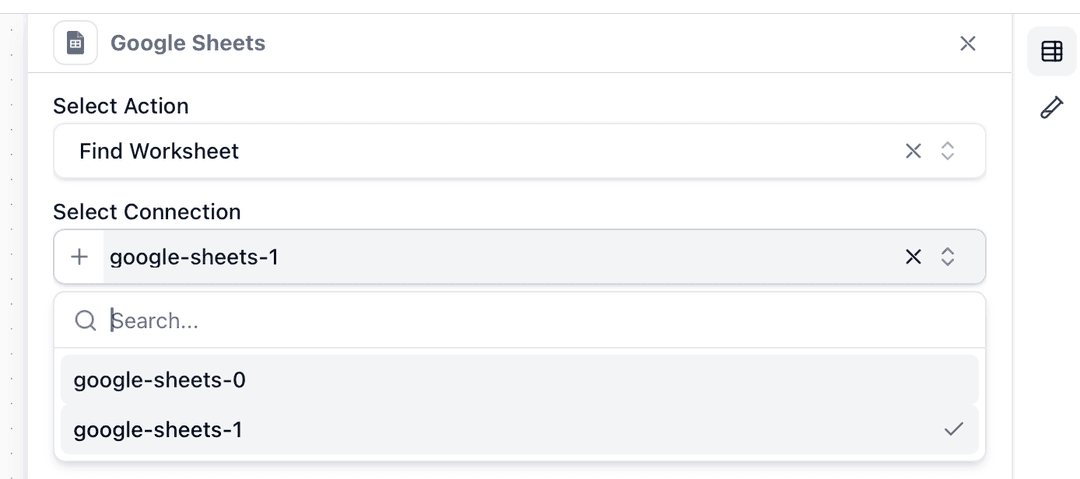
Add Google Sheets node
Search for Google Sheets and add the “Find Worksheet” action to your workflow
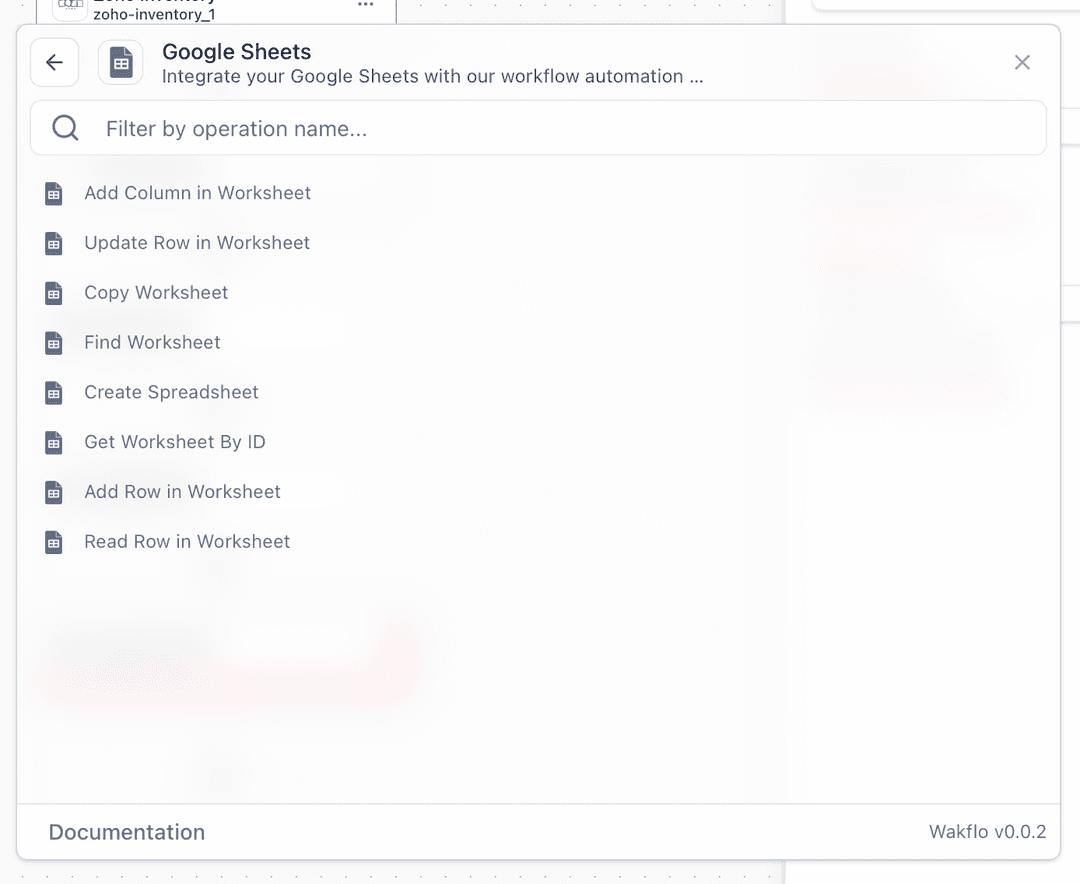
Configure connection
Select or create a Google Sheets connection
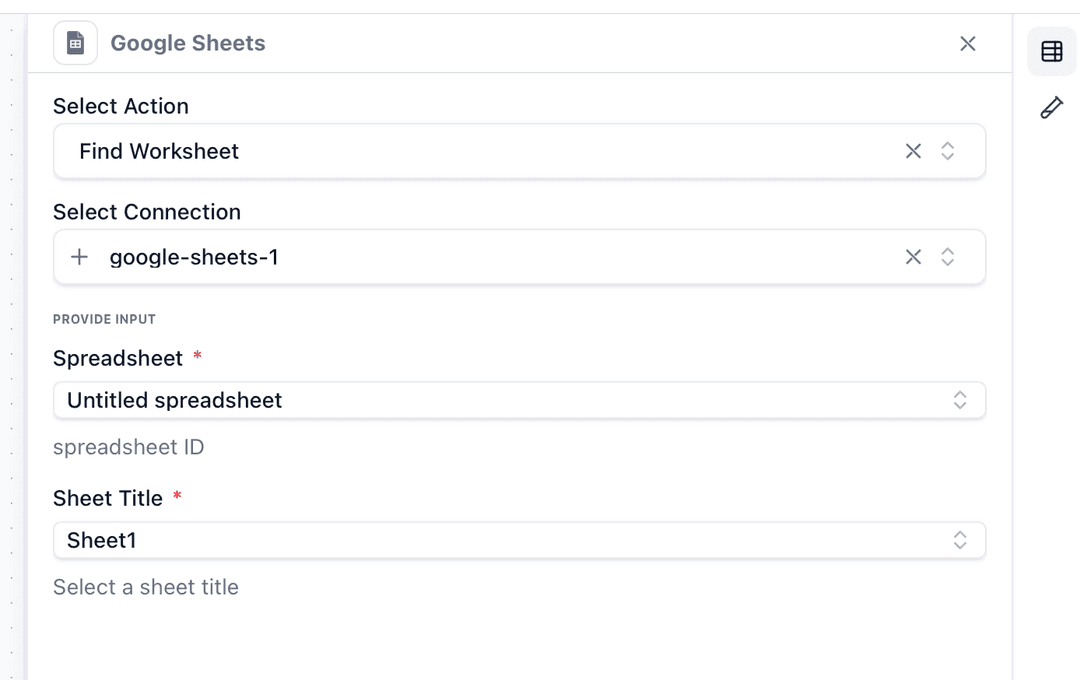
Enter search parameters
Input the spreadsheet ID and worksheet name to find
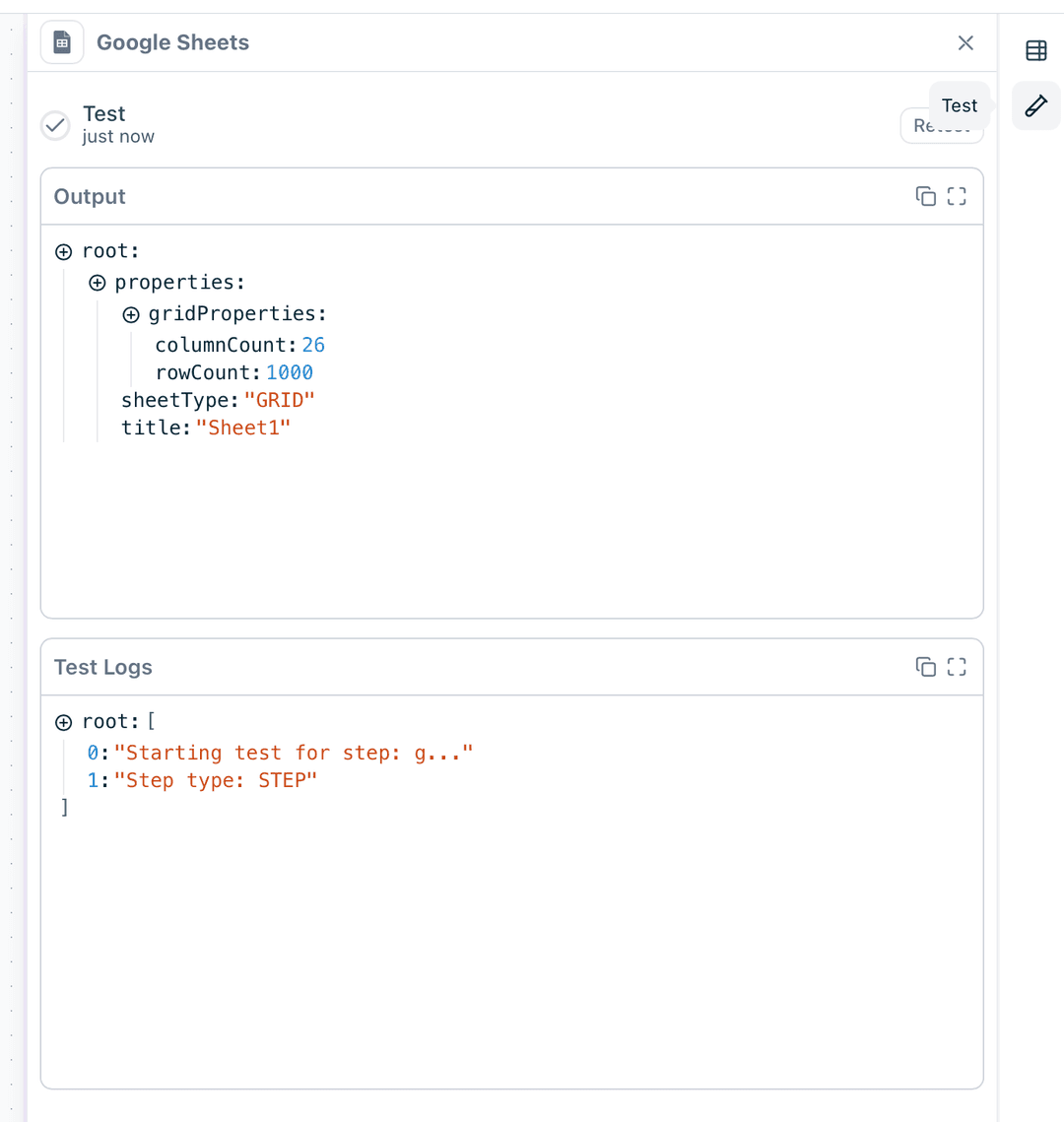
Test the action
Click “Test Step” to search for the worksheet and verify it exists
Advanced Features
Working with Formulas
When adding or updating cells with formulas:
- Prefix formula strings with
= - Use standard Google Sheets formula syntax
- Cell references auto-adjust when copying
Example formula values:
=SUM(A1:A10)=VLOOKUP(E2,A:C,3,FALSE)=TODAY()
Data Validation
Implement data validation before writing:
- Check data types match column formats
- Validate date formats (YYYY-MM-DD)
- Ensure numeric fields don’t contain text
- Verify required fields are populated
Troubleshooting
Spreadsheet Not Found
- Verify the spreadsheet ID is correct (found in URL)
- Ensure the connected account has access to the spreadsheet
- Check if the spreadsheet hasn’t been deleted
- Confirm it’s not in trash
Permission Errors
- Verify you have edit access (not just view)
- Check if the sheet is protected
- Ensure OAuth scopes include spreadsheet access
- For shared sheets, confirm sharing settings
Data Type Mismatches
- Numbers stored as text: Remove quotes and parse
- Date formatting: Use ISO format or serial numbers
- Boolean values: Use TRUE/FALSE (capitals)
- Empty cells: Use empty string, not null
Rate Limit Exceeded
- Implement exponential backoff for retries
- Batch multiple operations together
- Add delays between bulk operations
- Monitor quota usage in Google Cloud Console
Best Practices
-
Data Organization
- Use consistent header rows
- Implement clear naming conventions for sheets
- Avoid special characters in worksheet names
- Keep related data in the same spreadsheet
-
Performance Optimization
- Batch read/write operations when possible
- Cache frequently accessed spreadsheet IDs
- Minimize formula recalculations
- Use specific ranges instead of entire sheets
-
Error Handling
- Always validate data before writing
- Implement rollback logic for failed updates
- Log all operations for debugging
- Handle empty cells and missing data gracefully
-
Security Considerations
- Regularly audit spreadsheet permissions
- Use least-privilege access principles
- Avoid storing sensitive data in sheets
- Implement data encryption where needed