Platform Overview
This guide provides a comprehensive tour of the Wakflo platform interface, helping you navigate the various features and tools available for building powerful automations.
After logging into Wakflo, you will land on the Dashboard.
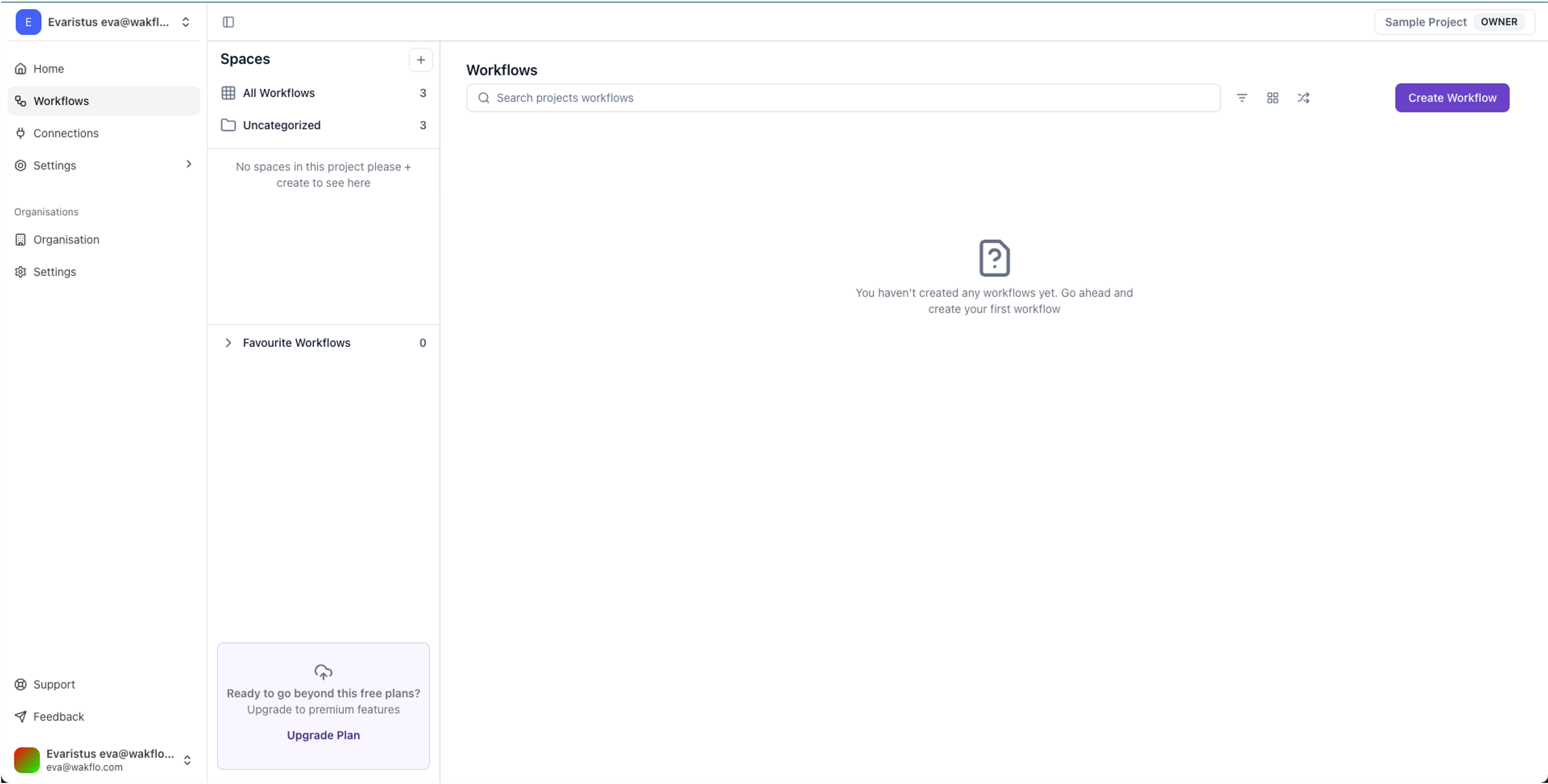
The Dashboard is your starting point in Wakflo, providing an overview of your automation ecosystem:
- Workflows: View all workflows and spaces
- Connections: See all integration you have connected
- Organisation: Manage your entire organisation
- Support: Access help resources and contact support
- Feedback: Provide feedback on the platform
Navigation Structure
The main navigation sidebar organizes Wakflo’s features into logical sections:
Workflow Navigation
- Workflows Create and manage automations
- Connections Connect external platforms
- Spaces Organize workflows into groups
- Settings Manage workflow related settings
- Members Manage permissions to workflows
- Secrets Securely manage API secrets & keys
- Billing Manages subscriptions and billing
Organization Navigation
- Organisation Overview of your organization
- Settings Configure your account
- Support Access support resources
- Feedback Report issues and give feedback
Workflows Section
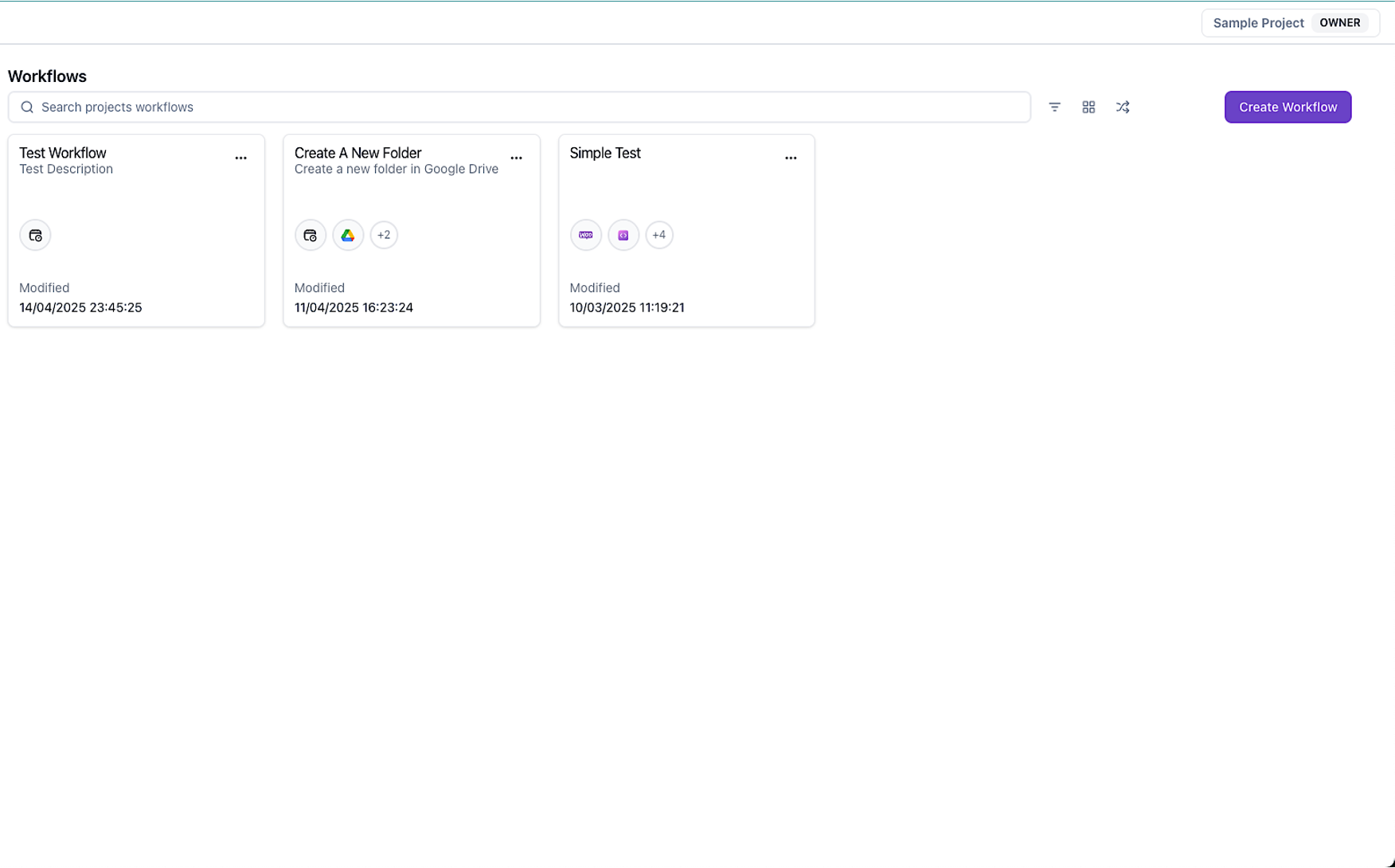
The Workflows section is where you create and manage your automation workflows. Key features include:
- Workflow List: View all your workflows with status indicators
- Search & Filter: Find workflows by name, status, tag, or integration
- Sort Options: Organize workflows by name, creation date, or last run
- Bulk Actions: Enable, disable, or delete multiple workflows at once
- Create Button: Start building a new workflow
Workflow Details
When you click on a workflow, you can access:
Editor
Visual interface for building and modifying workflows
Executions
History of workflow runs with detailed logs
Settings
Configuration options for the workflow
Settings Section
The Settings section allows you to configure your Wakflo account:
Account Settings
- Profile Information
- Company Details
- Billing & Subscription
- Security Settings
Team Management
- User Accounts
- Roles & Permissions
- Team Structure
- Access Controls
Developer Tools
- API Keys
- Webhooks
- Environment Variables
Automation Studio
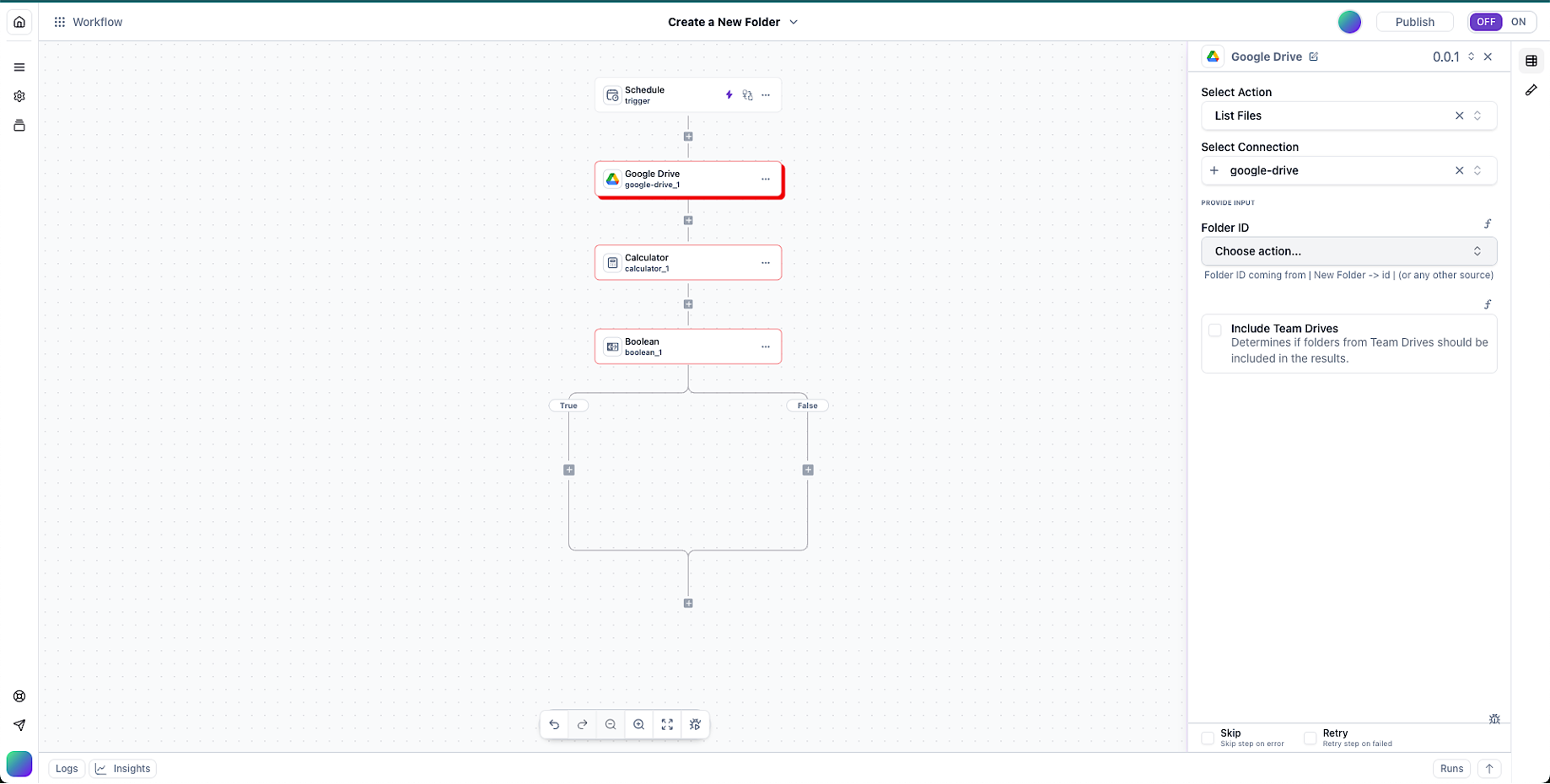
The Automation Studio is where you create, edit, configure, test and publish your automation workflows. The interface consists of:
- Left Navigation Panel: Contains configuration options and information about the workflow
- Top Menu Bar: Provides access to rename, save, publish and turn on/off a workflow
- Main Editor: The central area where you build your workflow using a visual interface
- Properties Panel: Displays properties and settings for the selected node in the workflow
- Integrations View: Shows all available integrations by category
- Monitoring Panel: Show the status of the workflow and its other important information
Learn more about using the Automation Studio in the Automation Studio documentation.
Keyboard Shortcuts
Wakflo provides keyboard shortcuts to improve productivity:
General Shortcuts
Ctrl+S | Save workflow |
Ctrl+Z | Undo |
Ctrl+Y | Redo |
Ctrl+F | Search |
F5 | Test workflow |
Esc | Close dialog |
Automation Studio Shortcuts
T | Add trigger |
A | Add action |
C | Add condition |
Del | Delete selected node |
Space | Pan canvas |
Ctrl+/ | Show keyboard shortcuts |
Customization
Wakflo offers several customization options to adapt the platform to your preferences:
Interface Theme
- Light Mode
- Dark Mode
- System Mode
Layout Options
- Compact View
- Expanded View
- Sidebar Customization
Next Steps
Now that you’re familiar with the Wakflo platform, you’re ready to start building your own workflows: