Key Concepts
Here we cover the fundamental concepts and terminology you need to understand when working with Wakflo. Familiarizing yourself with these concepts will help you get the most out of the platform and build powerful automations for your ecommerce business.
Workflows
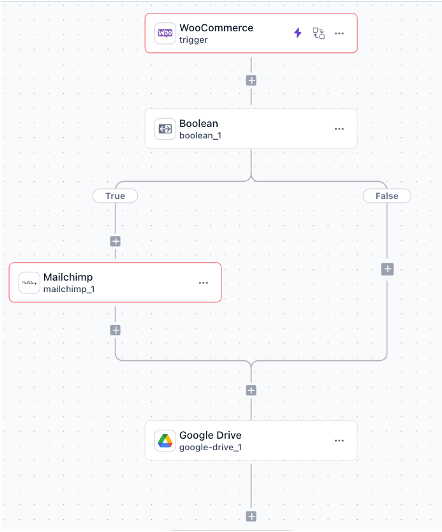
A workflow is a sequence of automated steps that executes when triggered by a specific event. Workflows are the core building blocks of automation in Wakflo.
Each workflow consists of a trigger (what starts the workflow) and a series of actions (what happens when the workflow runs). Workflows can also include conditions, loops, and error handling to create sophisticated automation logic.
Triggers
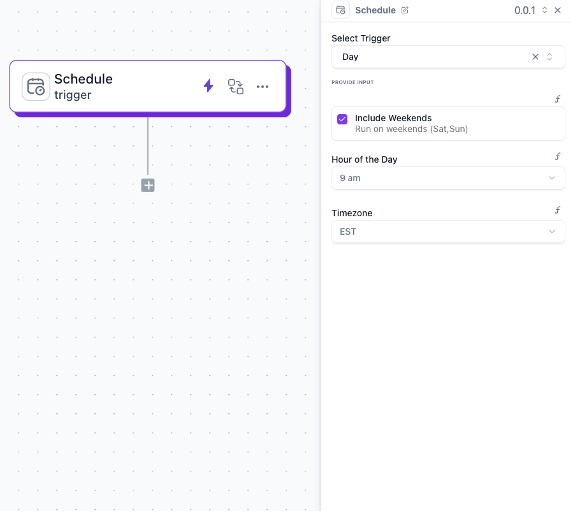
A trigger is an event that initiates a workflow. Every workflow starts with exactly one trigger.
Wakflo supports several types of triggers:
- Schedule Triggers: Time-based events (e.g., run daily at 9 AM, run every 2 minutes)
- App Triggers: Events from connected platforms (e.g., new order in WooCommerce)
- Manual Triggers: Started by user action or API call
Integrations
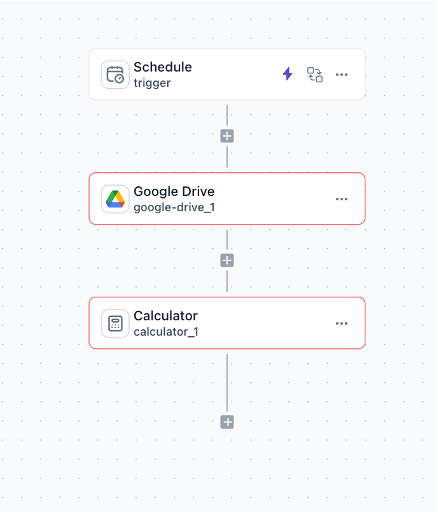
An integration allows you perform actions by connecting to external platforms (external integrations) or using built-in logic (internal integrations).
Each integration is configured with several actions based on the platform it is linked to.
For example, Google Drive is an external integration while Calculator is an internal integration.
At each step in the workflow only one action can be executed.
Actions
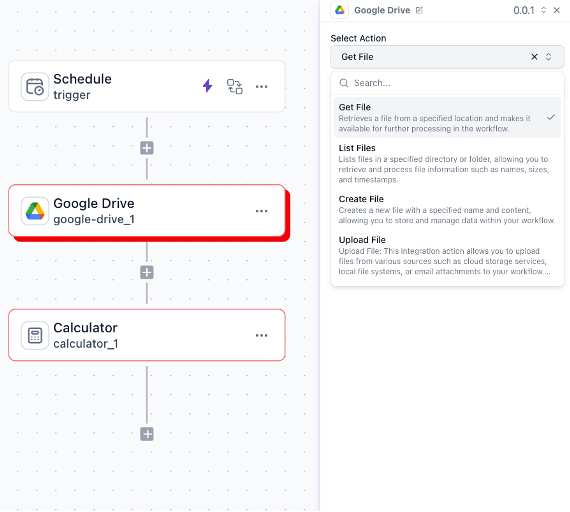
Actions are the tasks that your workflow performs. A workflow can contain multiple actions that execute in sequence.
Common action types include:
- Creating or updating records in your connected platforms
- Sending notifications (email, SMS, Slack messages)
- Data transformation and calculations
- HTTP requests to external services
- File operations (generating reports, uploading files)
Conditions
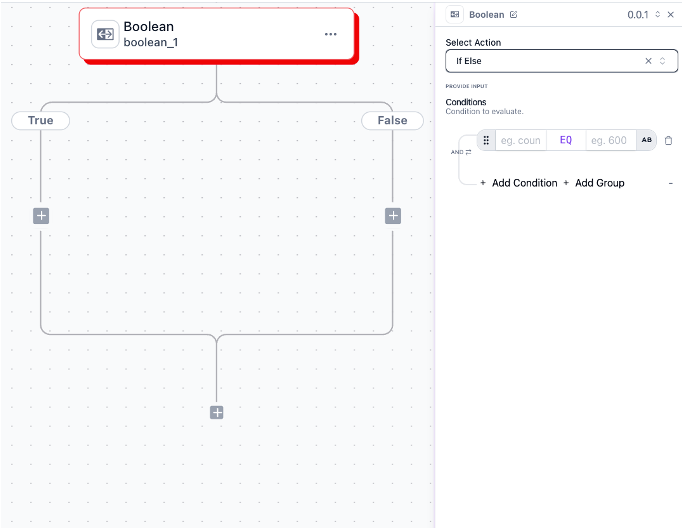
Conditions are decision points in your workflow that determine which path to follow based on specific criteria.
For example, a condition might check:
- If an order value is greater than $100
- If a product is in a specific category
- If a customer has a VIP status
- If inventory is below a threshold
Based on the condition’s evaluation, the workflow follows one path for true results and another for false.
There are two types of conditional integrations Boolean and Branch. Boolean evaluates to either True or False while Branch can be configured with multiple conditions.
Integrations
Integrations are connections to external platforms and services that Wakflo can interact with. They are fundamental to workflow automation as they allow data to flow between different systems.
Authentication
Each integration requires authentication (OAuth, API keys, etc.) to securely connect to the external platform.
Permissions
Integrations request specific permissions based on what actions they need to perform on your behalf.
Data Access
Once connected, integrations provide access to data and operations on the external platform.
Templates
Templates are pre-built workflows designed for common ecommerce scenarios. They provide a starting point that you can customize to fit your specific needs.
Purpose
Templates save time by providing ready-to-use solutions for common business processes.
Customization
All templates can be customized to match your specific business requirements.
Categories
Templates are organized by business function (inventory, orders, marketing, etc.).
Executions
An execution is a single run of a workflow. Each time a workflow is triggered, it creates a new execution.
Execution States
Scheduled: Waiting for trigger event
Started: Trigger event received
Running: Currently executing
Completed: Successful without errors
Failed: Encountered an error
Cancelled: Stopped manually
Execution Data
Each execution includes:
- Trigger data that started the workflow
- Results of each action
- Error details (if applicable)
- Execution time and duration
- Resource usage statistics
Environment Variables & Secrets
Environment variables are named values that can be used across multiple workflows. They are useful for storing configuration values, API credentials, and other reusable data.
Environment variables are defined at the organization level and can be accessed in any workflow within. Members of the organization can use these variables without needing to hard-code values in each workflow.
Secrets are similar to environment variables but are defined at the project level. They are used to store sensitive information, such as API keys and passwords, that should not be exposed in workflow definitions.
To set Environment Variables go to the Organizations → Settings → Environment Variables or use the link .
To set Secrets go to the Projects → YOUR_PROJECT_NAME → Settings → Secrets.
Common Uses
- Store API keys (securely encrypted)
- Define threshold values (e.g., low stock level)
- Store email addresses for notifications
- Set base URLs for API endpoints
Benefits
- Update values in one place
- Keep sensitive information secure
- Easier environment switching (dev/prod)
- Consistent configuration across workflows
Teams and Permissions
Wakflo’s team management features allow multiple users to collaborate on automations with appropriate access controls.
Role-Based Access Control
Admin: Full access to all features
Editor: Create and edit workflows
Viewer: View-only access
Permissions can be configured at both the account and workflow levels.
Next Steps
Now that you understand the key concepts of Wakflo, you’re ready to start building your automation workflows: