Zoho SalesIQ Integration
The Zoho SalesIQ integration connects your Zoho SalesIQ account to Wakflo, enabling you to automate customer engagement workflows, monitor website visitors, and manage live chat interactions.
Authentication Method: OAuth 2.0
Account Requirements:
- Active Zoho SalesIQ account
- Organization ID from your Zoho SalesIQ account
- Admin or appropriate permissions
- API access enabled
Getting Started
Prerequisites: You need a Zoho SalesIQ account to use this integration. Create one at zoho.com/salesiq if you don’t have one already.
Zoho SalesIQ Actions
Chat Management Actions
- List Chats: Retrieve all chat conversations from your SalesIQ account
Visitor Management Actions
- Get Visitor Details: Retrieve detailed information about a specific website visitor
Setup Guide
Connect to Zoho SalesIQ
From the Integrations page, select Zoho SalesIQ and click “Connect”
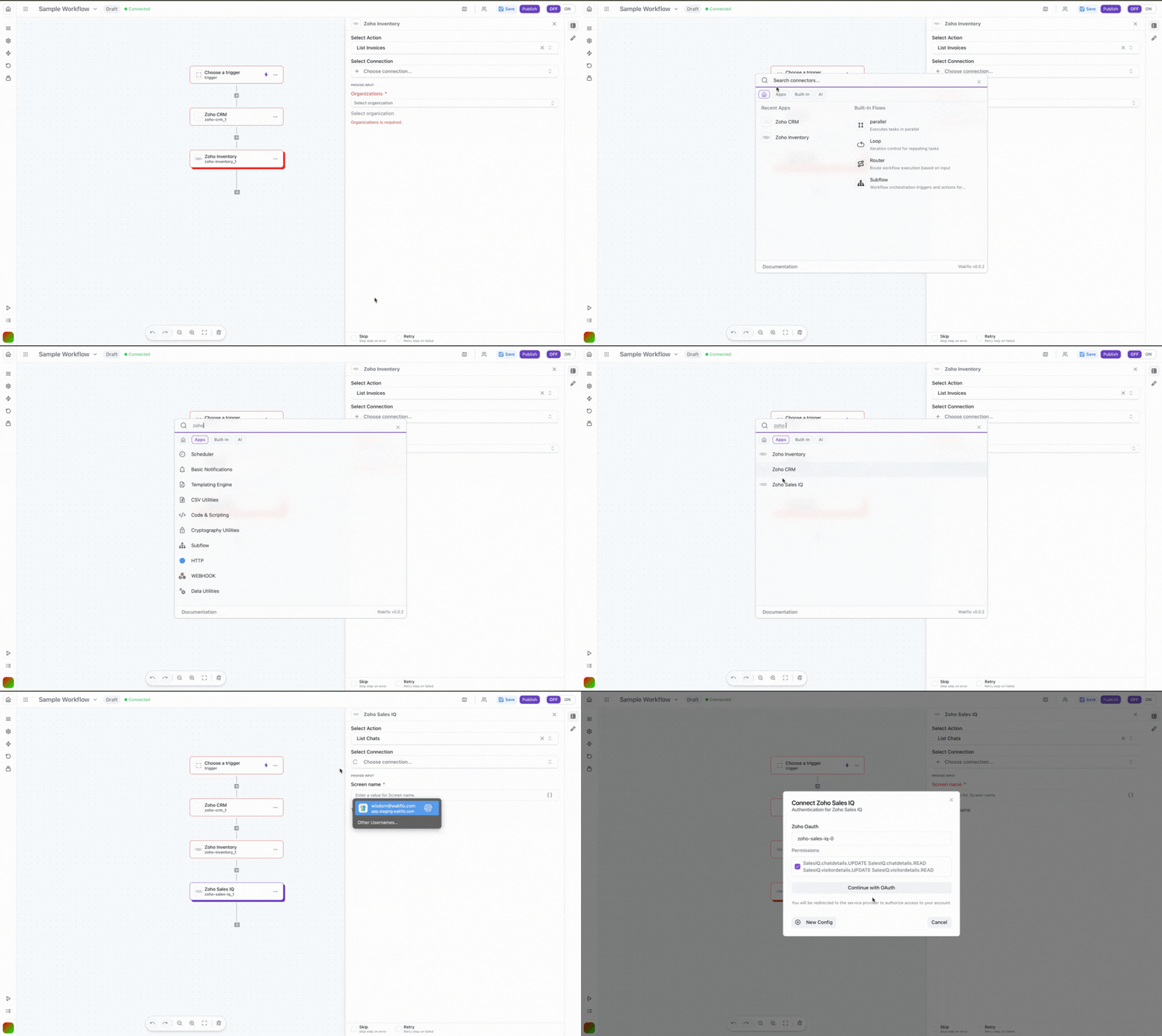
Sign in to Zoho SalesIQ
Log in to your Zoho account when prompted
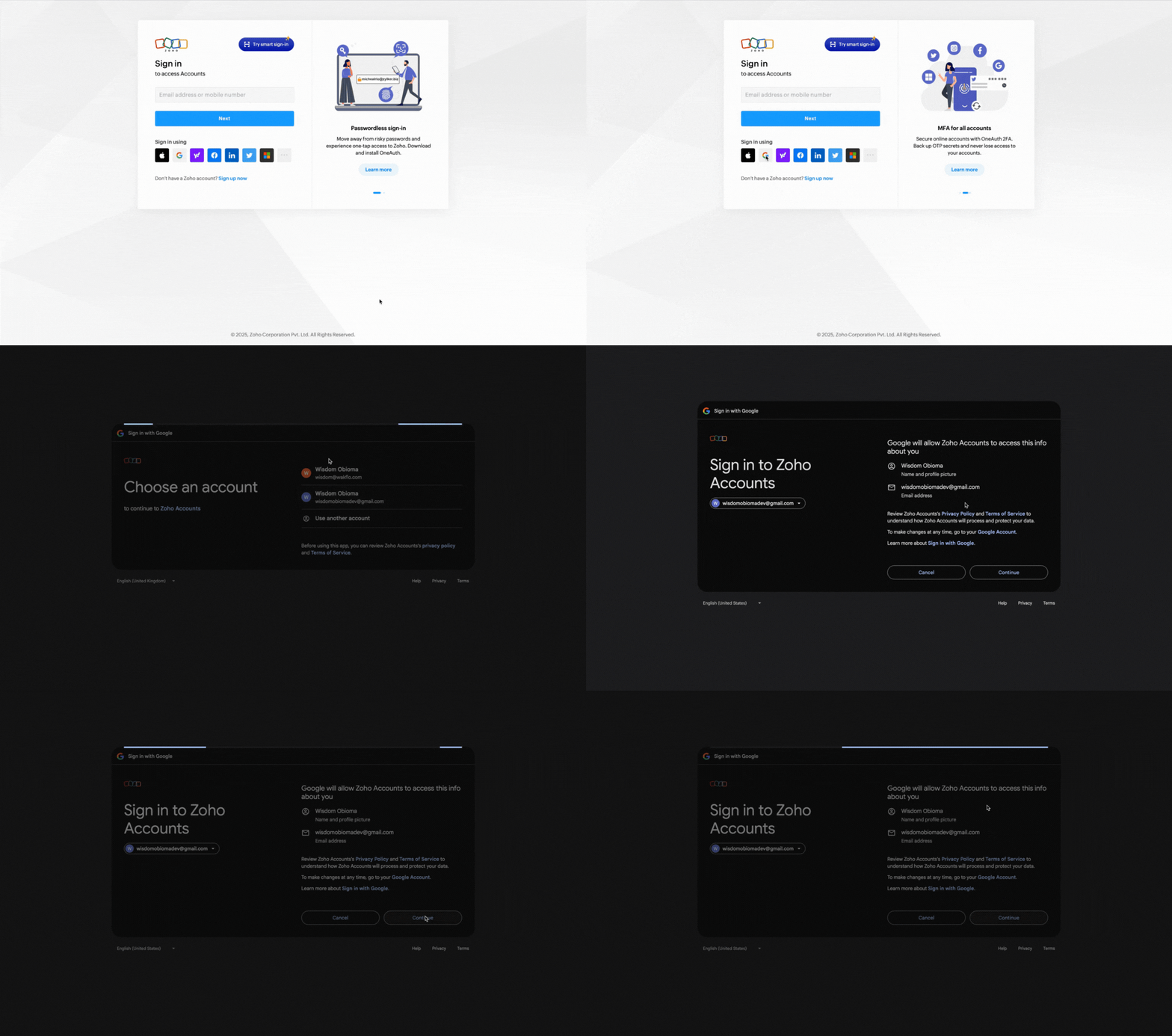
Approve Permissions and Authorize Access
Review and grant the requested permissions for Wakflo to access your Inventory data
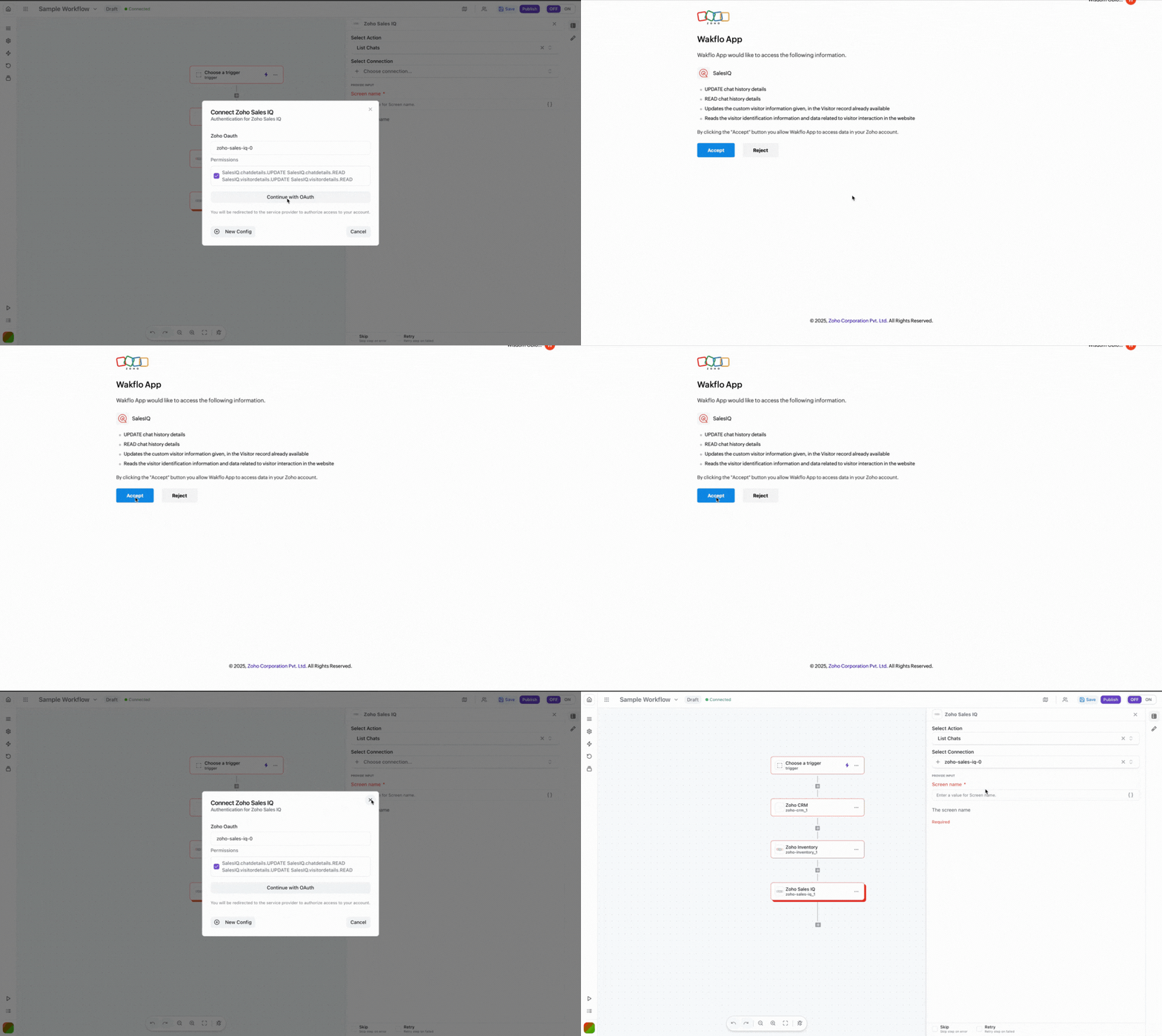
Complete Setup
Once authorized, your connection is ready. You can now add Zoho SalesIQ nodes to your workflows.
Field Mapping Reference
| Entity Type | Required Fields | Format Notes |
|---|---|---|
| Chat | None (list operation) | Returns all chat conversations with metadata |
| Visitor | visitor_id | Unique identifier for the website visitor |
Example: Executing an Action
Add your preferred node
Search for Zoho SalesIQ and add your preferred node to your workflow
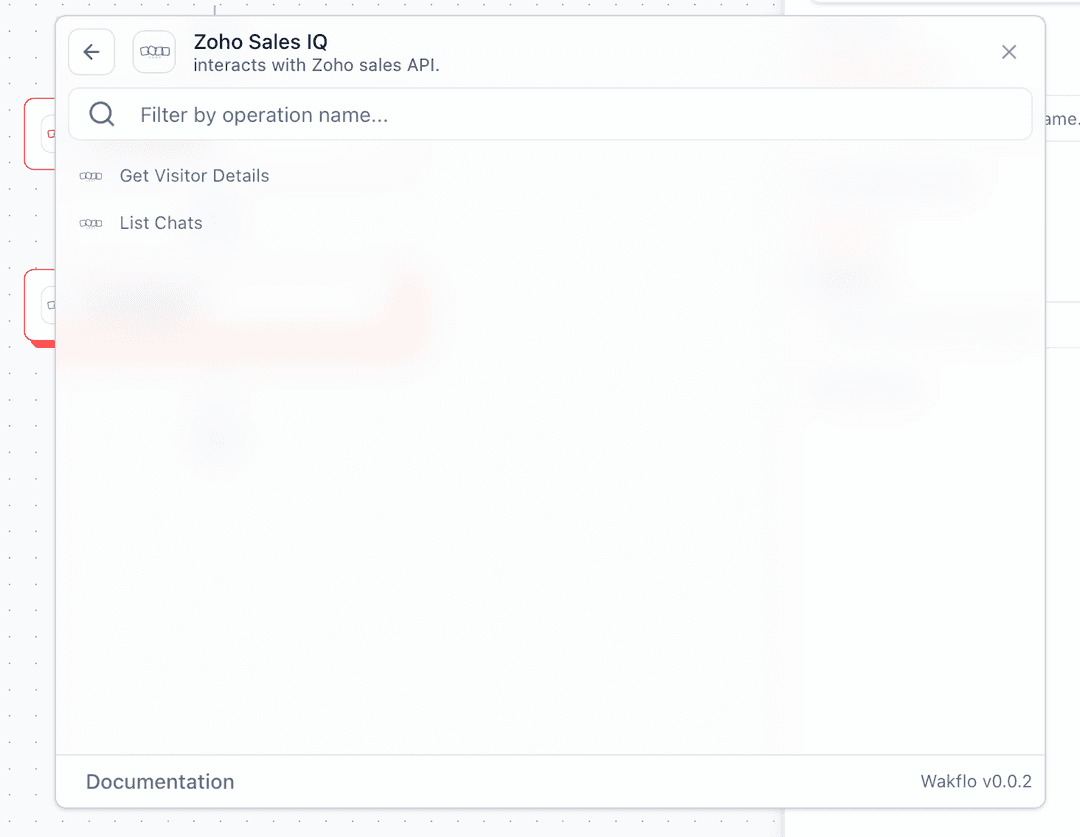
Configure connection
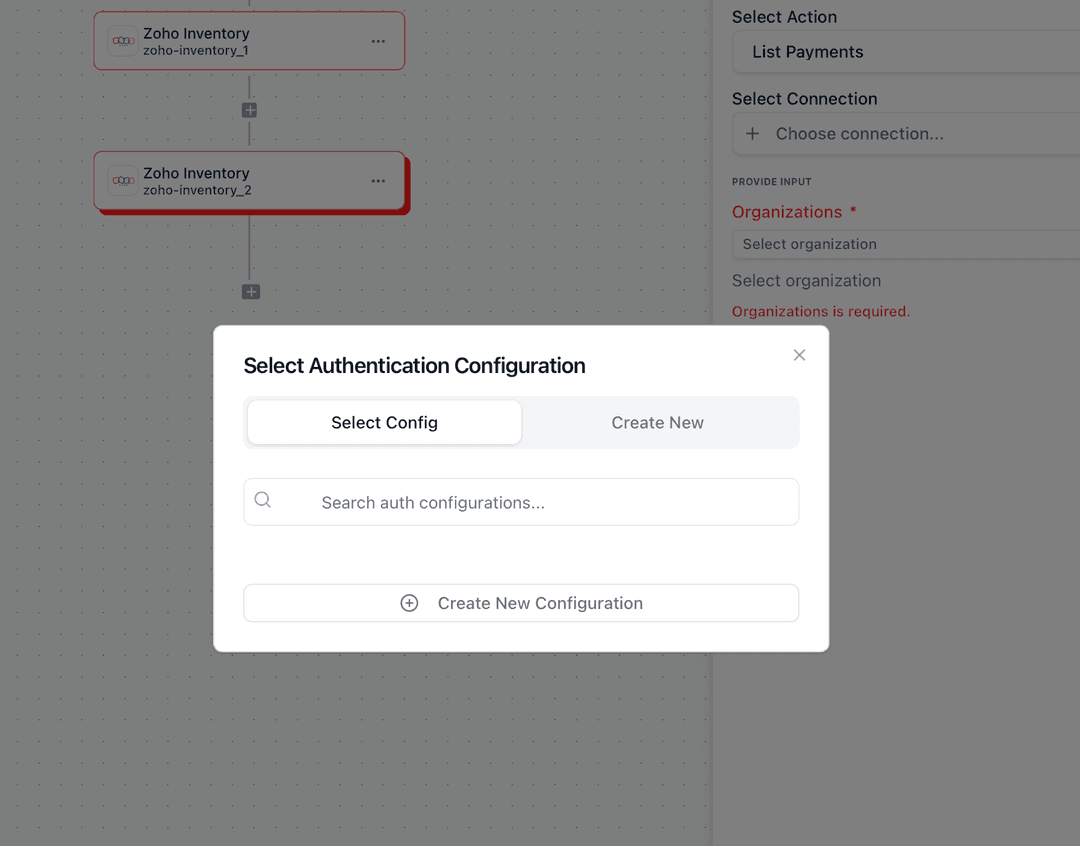
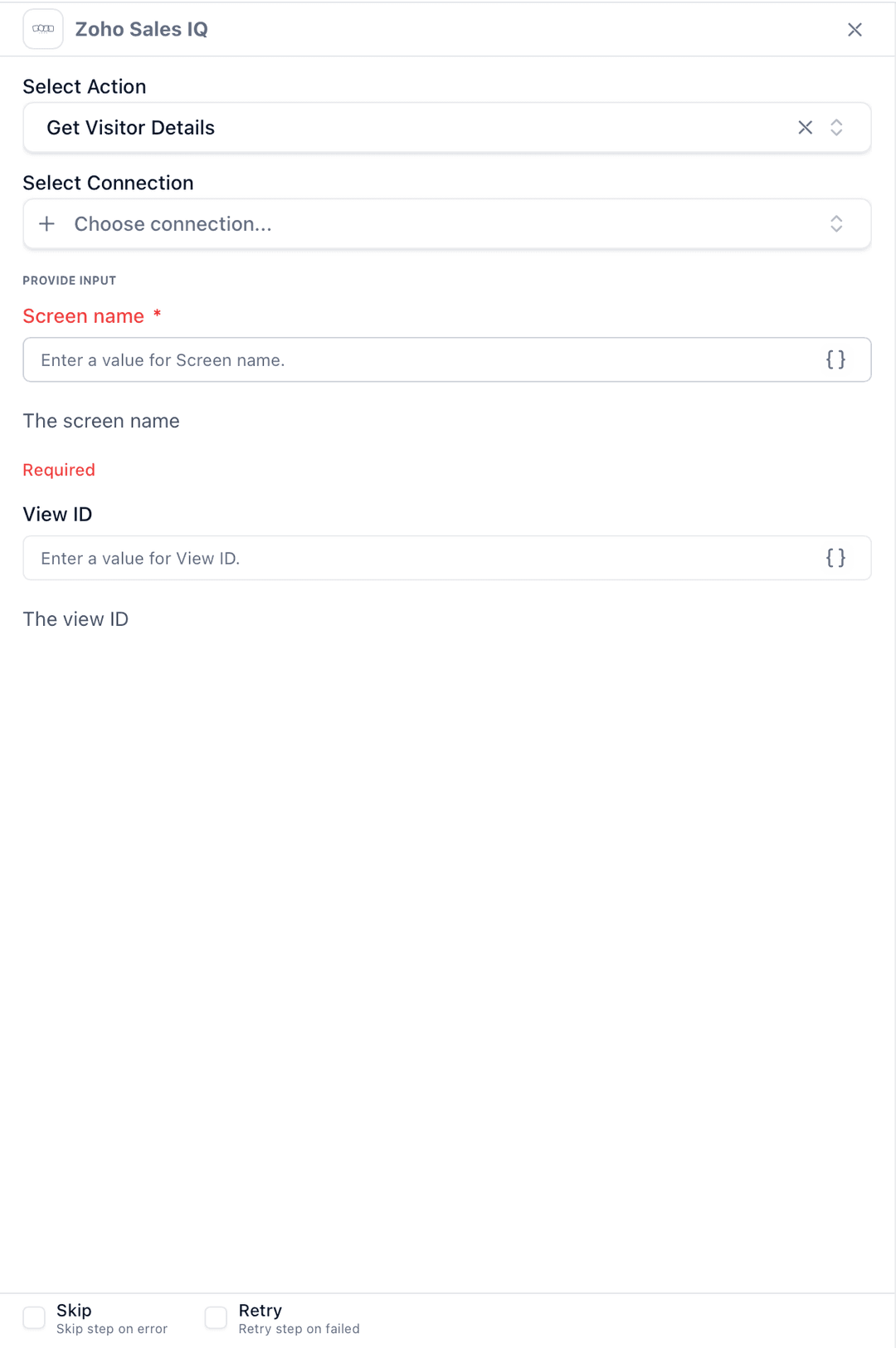
Configure the node
Set up the node configuration
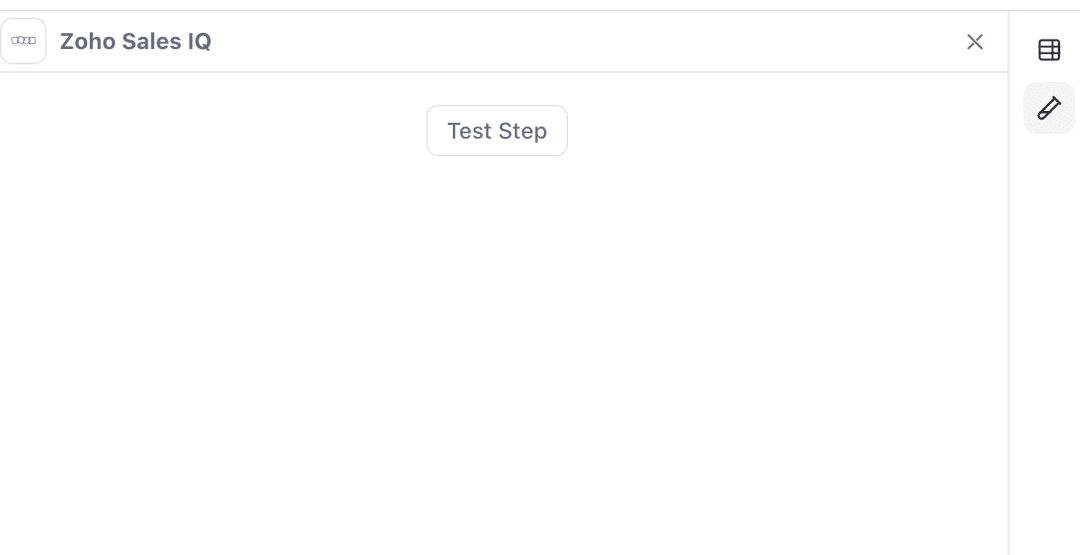
Execute and Test
To test operation, click on “Test Step” and execute the scenario
Best Practices
API Limits: Zoho SalesIQ has rate limits based on your plan. Monitor your API usage to avoid hitting limits.
Error Handling
- Always implement error handling for API responses
- Validate visitor IDs before making API calls
- Handle cases where visitors or chats may not exist
- Implement proper timeout handling for API requests
Performance Tips
- Cache frequently accessed visitor data
- Use pagination when retrieving large chat lists
- Minimize API calls by storing and reusing data when possible
- Consider implementing webhook listeners for real-time updates (when available)
Troubleshooting
Authentication Errors
- Verify your Organization ID is correct
- Ensure your Zoho account has API access enabled
- Check that you’ve approved all required permissions
- For custom apps, verify the redirect URI matches exactly
Missing Data Issues
- Some visitor data may require specific tracking to be enabled
- Ensure the visitor ID exists in your SalesIQ account
- Check if chat history retention settings are affecting data availability
- Verify you have proper permissions to access the requested data
Rate Limit Errors
- Implement exponential backoff for retries
- Spread requests over time instead of bursts
- Consider upgrading your Zoho plan for higher limits
- Cache data to reduce redundant API calls