Google Drive Integration
The Google Drive integration connects your Google Drive account to Wakflo, enabling you to automate file management, folder organization, and content synchronization workflows.
Authentication Method: OAuth 2.0
Account Requirements:
- Active Google account
- Google Workspace or personal Google account
- Sufficient storage space
- Appropriate file/folder permissions
Google Drive Triggers
File & Folder Triggers
- New File: Triggered when a new file is uploaded or created in Google Drive
- New Folder: Triggered when a new folder is created in Google Drive
Google Drive Actions
File Actions
- Upload File: Upload a file to Google Drive
- Create File: Create a new file in Google Drive
- Duplicate File: Create a copy of an existing file
- Get File: Retrieve file metadata and download link
- Read File Content: Get the content of text-based files
- List Files: Retrieve a list of files with filtering options
Folder Actions
- Create Folder: Create a new folder in Google Drive
- List Folders: Retrieve a list of folders with filtering options
Google Drive Setup Guide
Connect to Google Drive
From the Integrations page, select Google Drive and click “Connect”
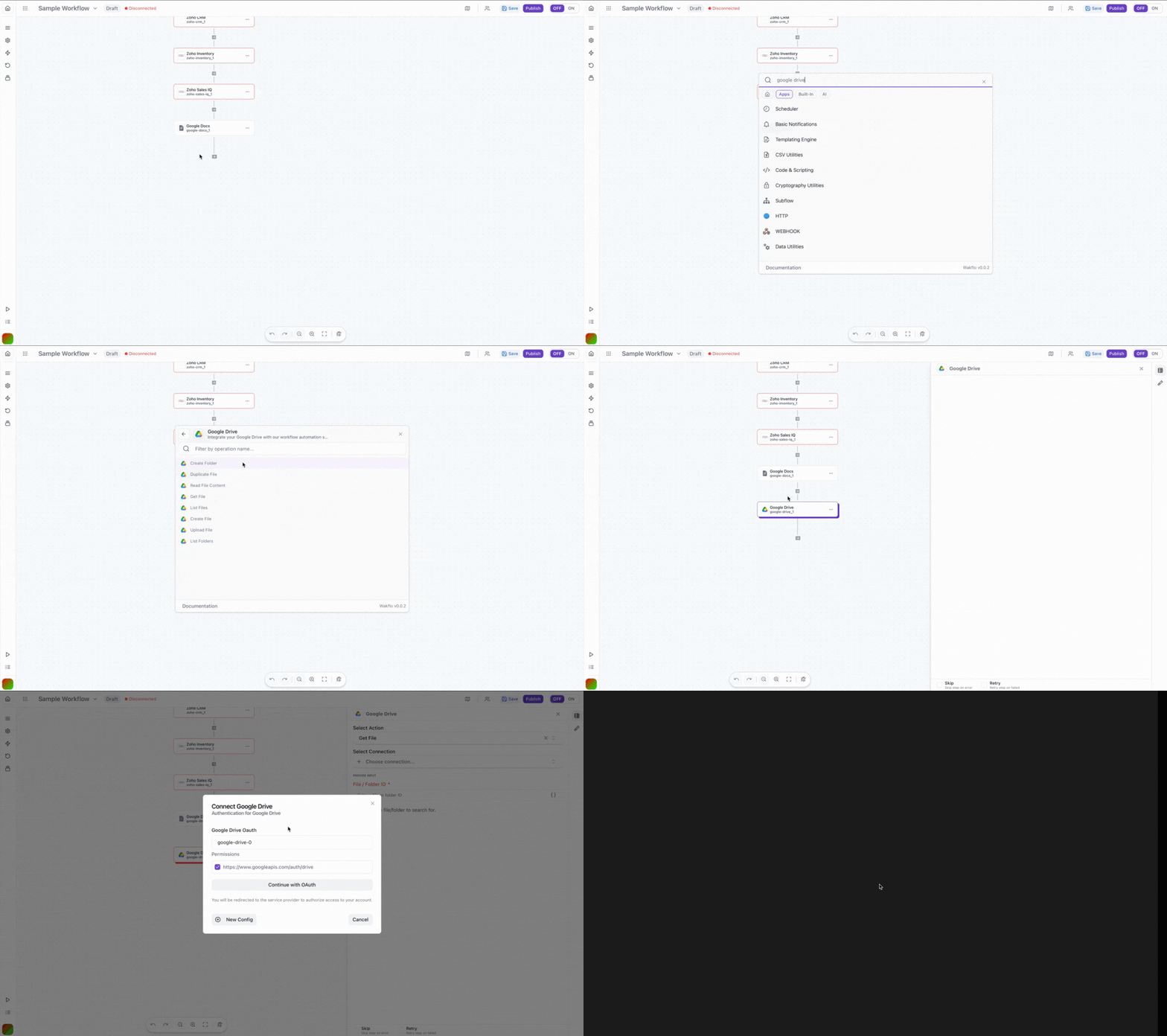
Sign in to Google
Log in to your Google account when prompted
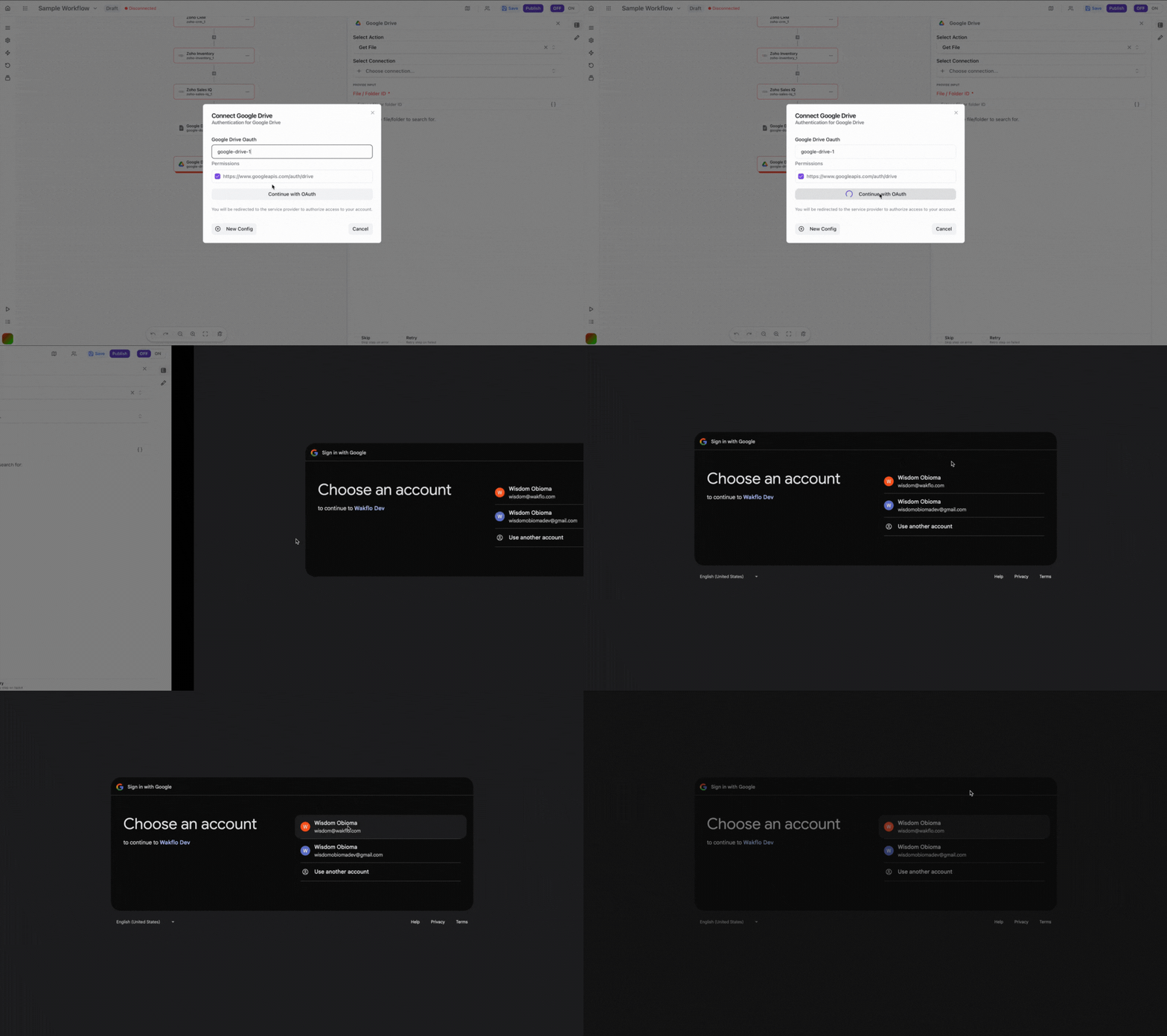
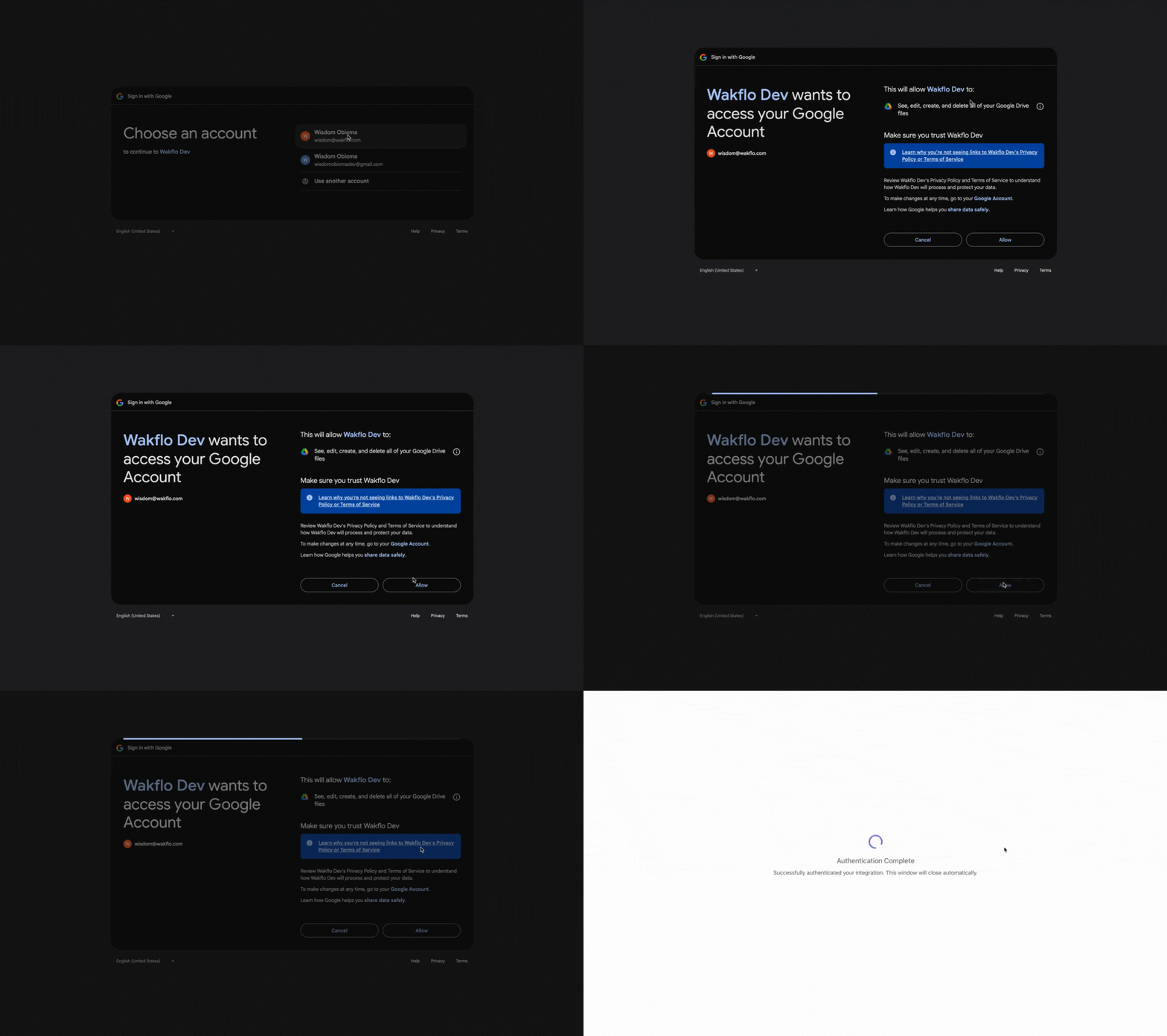
Approve Permissions
Review and grant the requested permissions for Wakflo to access your Google Drive
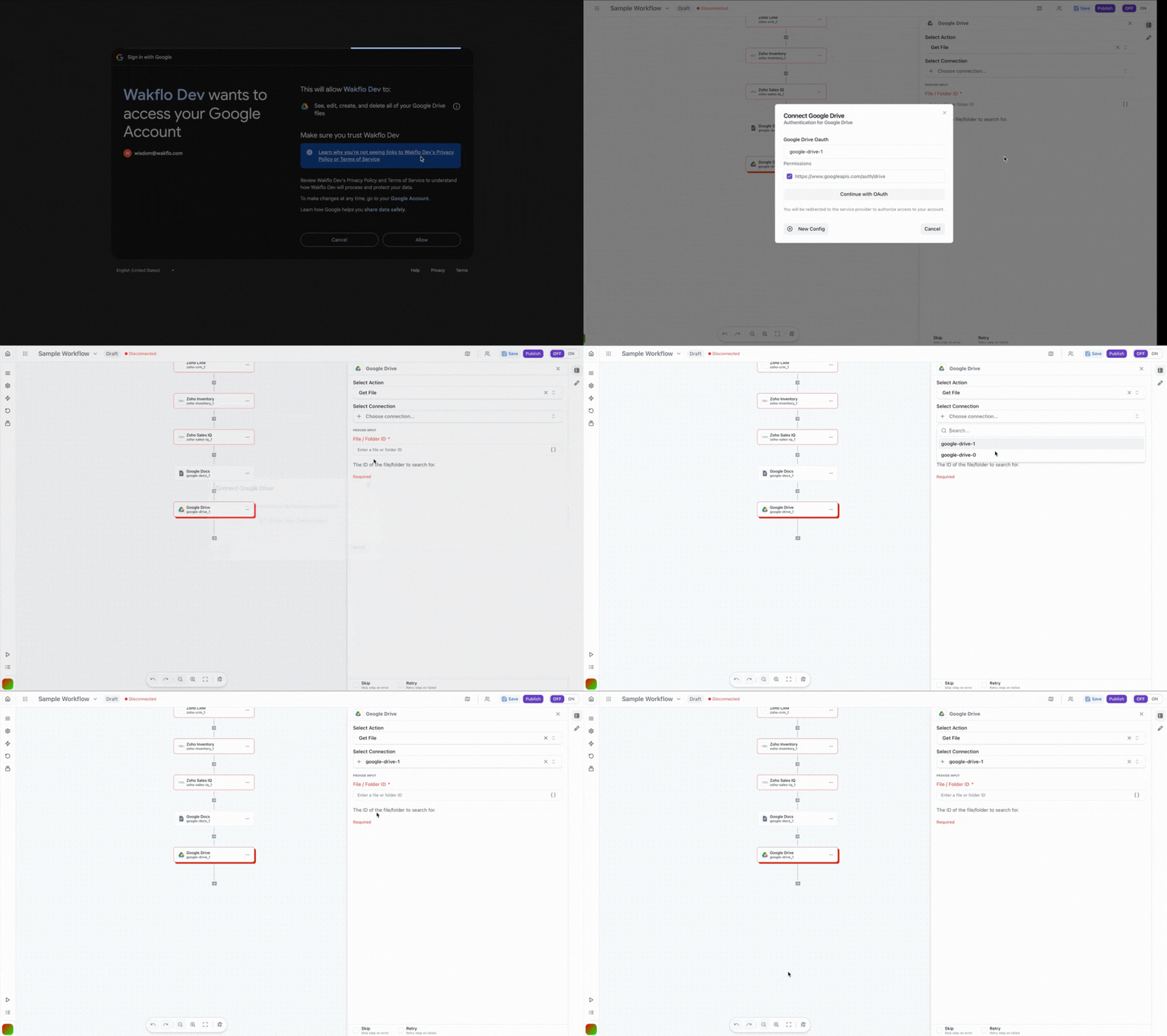
Complete Setup
Finish the connection process and start building file management workflows
Shared Drives: If you’re using Google Workspace, ensure you have appropriate permissions for shared drives you want to access through the integration.
Trigger Configuration
New File Trigger
Monitors Google Drive for new files added to specified locations.
Configuration Options:
folder(optional): Monitor specific folder onlyfileType(optional): Filter by file type (docs, sheets, images, etc.)sharedDrives(optional): Include shared drives in monitoring
Trigger Data:
- File ID
- File name
- File type
- Created date
- Owner information
- Parent folder
New Folder Trigger
Detects when new folders are created in Google Drive.
Configuration Options:
parentFolder(optional): Monitor specific parent folder onlysharedDrives(optional): Include shared drives in monitoring
Trigger Data:
- Folder ID
- Folder name
- Created date
- Parent folder
- Owner information
Action Details
Upload File
Uploads a file from a URL or base64 content to Google Drive.
Parameters:
fileName(required): Name for the uploaded filefileContent(required): File URL or base64 encoded contentfolderId(optional): Destination folder IDmimeType(optional): File MIME type
Returns:
- File ID
- Web view link
- Download link
- File size
Create File
Creates a new file directly in Google Drive.
Parameters:
fileName(required): Name of the filecontent(required): File contentmimeType(required): File type (text/plain, application/json, etc.)folderId(optional): Parent folder ID
Returns:
- File ID
- File URL
- Created timestamp
Duplicate File
Creates a copy of an existing file.
Parameters:
fileId(required): ID of file to duplicatenewName(required): Name for the duplicatefolderId(optional): Destination folder for copy
Returns:
- New file ID
- File URL
- Copy timestamp
Get File
Retrieves metadata and download information for a specific file.
Parameters:
fileId(required): The ID of the file
Returns:
- File metadata
- Download URL
- File size
- Modified date
- Sharing permissions
Read File Content
Reads the content of text-based files.
Parameters:
fileId(required): ID of the file to read
Returns:
- File content as text
- File metadata
File Size Limit: Read File Content works best with text files under 10MB. For larger files, use Get File to obtain a download link.
List Files
Retrieves a list of files based on search criteria.
Parameters:
query(optional): Search queryfolderId(optional): Limit to specific folderpageSize(optional): Number of results (max 1000)orderBy(optional): Sort order
Returns:
- Array of files with metadata
- Next page token (if applicable)
Create Folder
Creates a new folder in Google Drive.
Parameters:
folderName(required): Name of the folderparentFolderId(optional): Parent folder ID
Returns:
- Folder ID
- Folder URL
- Created timestamp
List Folders
Retrieves a list of folders.
Parameters:
parentFolderId(optional): List only subfolders of specific folderpageSize(optional): Number of resultsincludeShared(optional): Include shared folders
Returns:
- Array of folders with metadata
- Next page token (if applicable)
Field Mapping
When working with Google Drive:
- File/Folder IDs can be found in the URL after
/folders/or/file/d/ - MIME types determine how Google Drive handles files
- Use ‘root’ as folder ID to reference the main Drive folder
- Shared items require appropriate permissions
API Limits & Best Practices
| Limit Type | Value | Notes |
|---|---|---|
| Queries per day | 1,000,000,000 | Per project |
| Queries per 100 seconds | 20,000 | Per user |
| Upload size | 5 TB | Maximum file size |
| List page size | 1000 | Maximum items per request |
Example Workflow: Retrieve and Process Files
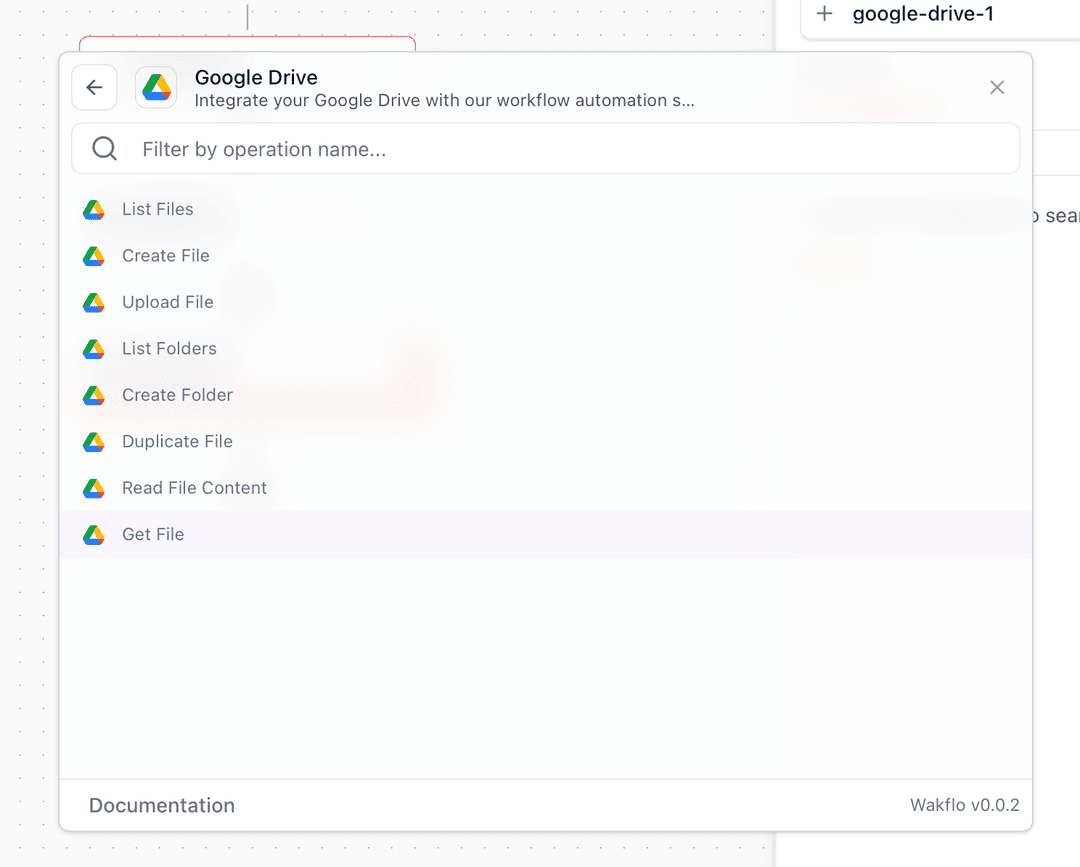
Add Google Drive node
Search for Google Drive and add the “Get File” action to your workflow
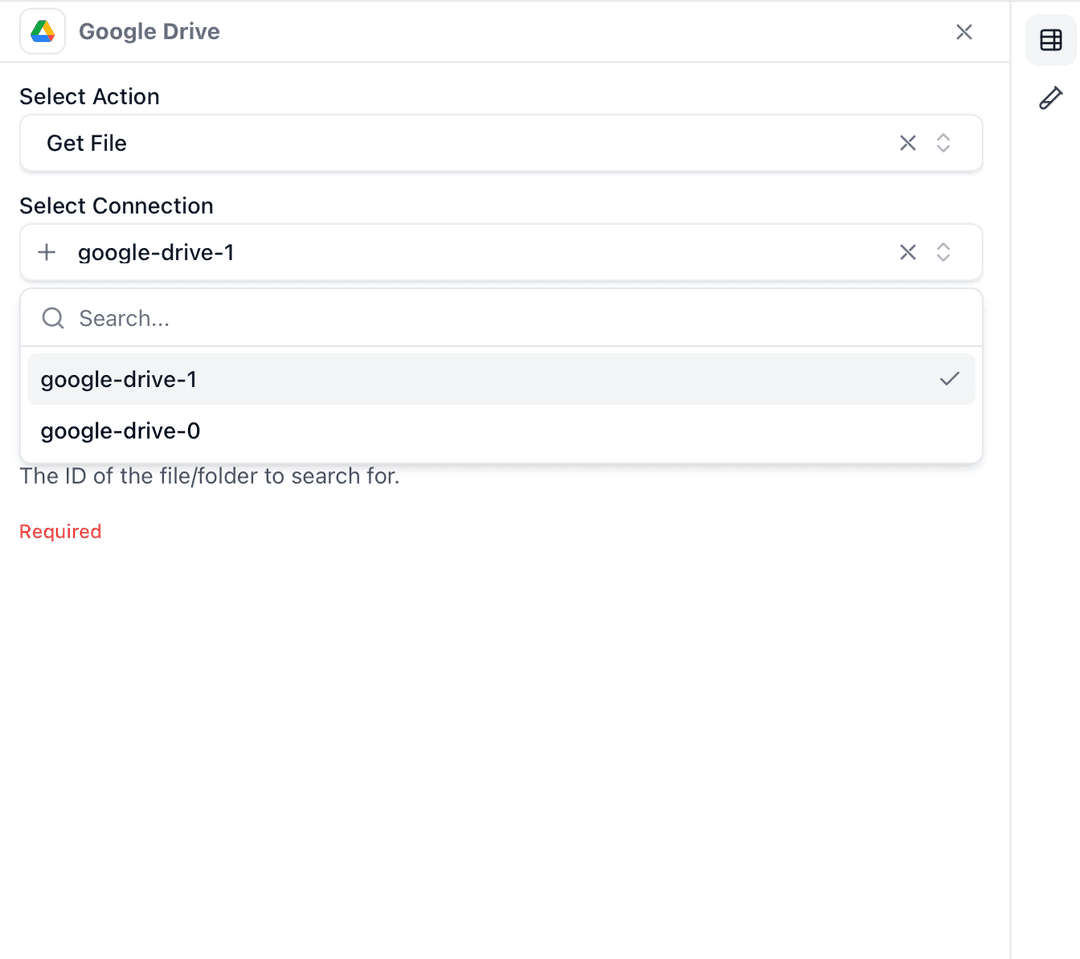
Configure connection
Select or create a Google Drive connection
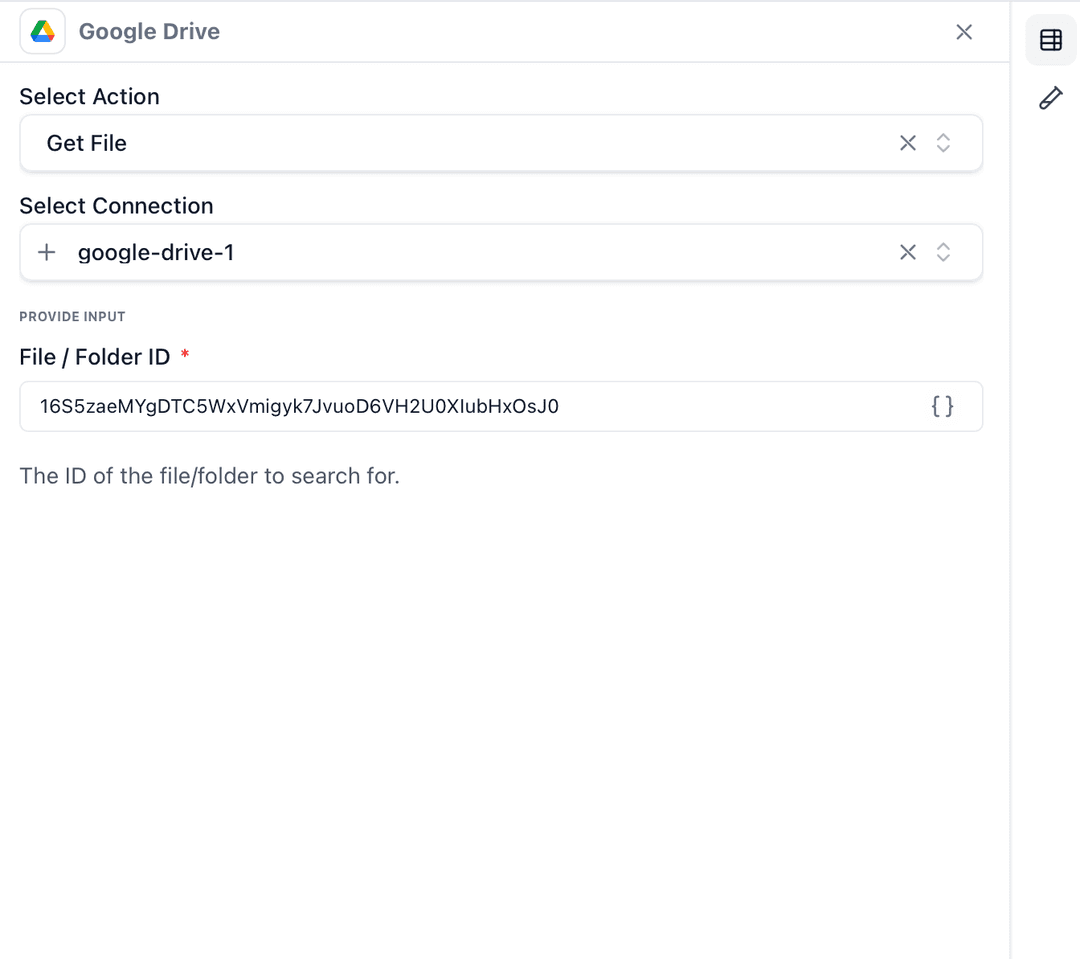
Enter file ID
Input the file ID or map it from a previous workflow step
Test the action
Click “Test Step” to retrieve the file metadata and download link
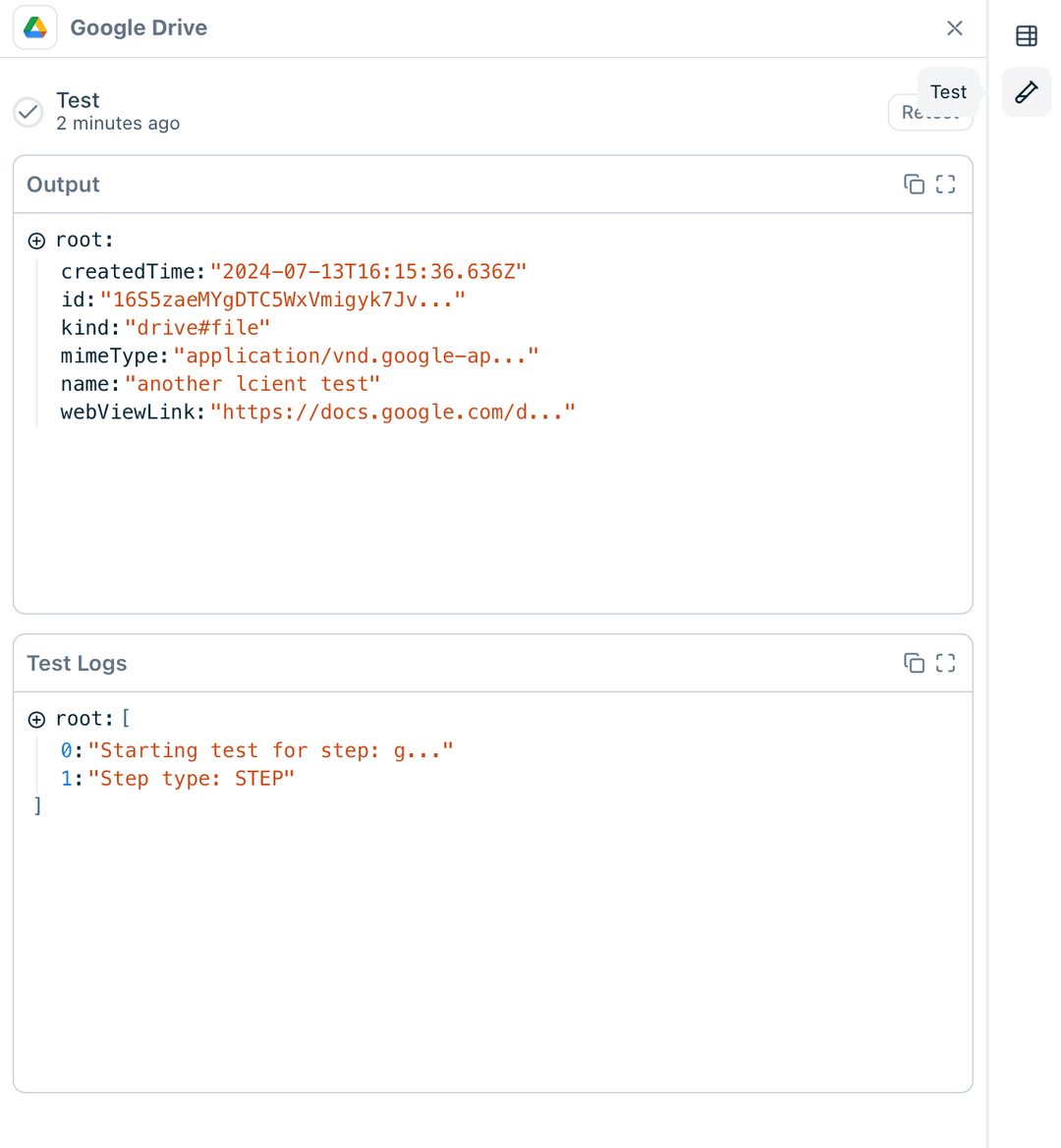
Advanced Features
Working with Shared Drives
When working with Google Workspace shared drives:
- Ensure the connected account has access to the shared drive
- Click thr checkboc to include team drives
Troubleshooting
Permission Denied Errors
- Verify the connected account has access to the file/folder
- Check if the item is in a shared drive requiring additional permissions
- Ensure OAuth scopes include necessary Drive permissions
- For shared items, confirm you have edit (not just view) access
File Not Found
- Verify the file ID is correct
- Check if the file has been moved to trash
- Ensure the file is in the connected account’s Drive
- Use List Files to search if ID is unknown
Upload Failures
- Check available storage space in Google Drive
- Verify file size is within limits
- Ensure proper MIME type is specified
- For base64 uploads, verify encoding is correct
Trigger Not Firing
- Confirm webhook is properly registered
- Check if changes are in monitored folder
- Verify trigger filters aren’t too restrictive
- Allow up to 1 minute for trigger detection
Best Practices
-
File Organization
- Use consistent naming conventions
- Create a logical folder hierarchy
- Implement automated cleanup for old files
- Use metadata and descriptions for better searchability
-
Performance Optimization
- Use batch operations when possible
- Implement pagination for large file lists
- Cache frequently accessed file IDs
- Avoid recursive folder operations
-
Security Considerations
- Regularly audit sharing permissions
- Use least-privilege access principles
- Implement file encryption for sensitive data
- Monitor unusual access patterns
-
Error Handling
- Implement retry logic for transient failures
- Log all file operations for audit trails
- Set up alerts for failed uploads
- Handle quota exceeded errors gracefully